

AI Video Editor
Edit any video just by describing the change.
Video tool · runs on Kling O3, Kling O1 and Wan Vace
Upload a clip, describe what should change, and a video model re-renders it with the edit while keeping the motion.
Edit Video is a video editor AI that works from a sentence instead of a timeline. You upload a short clip, write what to change, such as turn the t-shirt into a green sweater or make it a snowy evening, and press Generate. A video-to-video model then re-renders the clip with your edit, following the original motion, framing and timing. It is the tool for changes that would take hours of masking and compositing in a normal editor: a different outfit, a new setting, another time of day, a different art style. It is not a cutting tool; to trim, reorder or join clips, use the Video Composer. You choose the model in the bar under your video. Kling O3 Pro is selected by default and gives the most careful edits, Kling O3 Standard is the same family at the same price, and Kling O1 and Wan Vace cost less. The Kling models edit clips up to 10 seconds long; the tool checks the length before you are charged and asks you to trim a longer video. Optional presets add a camera movement, a shot type or a lighting style to your description. Because the whole clip is regenerated, small details such as text on a sign, hands or a logo can shift, so watch the result through before you use it.
Examples

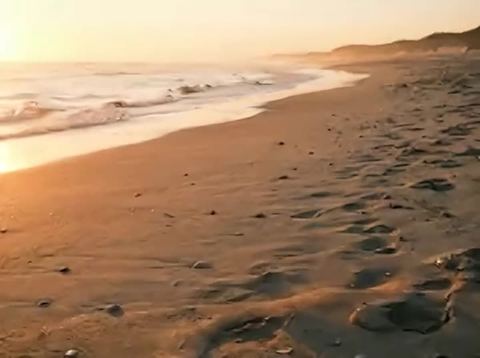
What it does
Describe the edit
Write the change in plain words in the Describe what to change box. Name what to change and what it should become, and the rest of the scene is kept as close to the original as the model can manage.
Four editing models
Kling O3 Pro (the default), Kling O3 Standard, Kling O1 and Wan Vace. The price of each shows in the model picker and on the button, and the two Kling O3 models are the higher tier. Try a cheaper model first for a rough idea, then rerun on O3 Pro.
Camera, shot and lighting presets
Pick a camera movement, a shot type or a lighting preset and its wording is added to your prompt. Presets alone are enough to start an edit, and they make a useful starting point when you are not sure how to phrase a look.
How it works
- 1
Upload a short clip
Drop a video onto the upload card or click to choose one. Signed in, you can also pick an earlier result from the rail on the left. Keep it to 10 seconds or less for the Kling models.
- 2
Write the change and pick a model
Type what to change in the bar under the video, choose a model, and add a camera, shot or lighting preset if you want one. Press Cmd or Ctrl and Enter to send.
- 3
Generate and review
Press Generate; the price shows on the button. Sign in if asked. You move to the video workspace, where the edit runs in History. When it is done, play it, download it, or edit it again.
Who it's for
For creators and editors
Restyle a shot to match the rest of a video, swap a costume, or change the weather in a scene without reshooting or building a mask frame by frame.
For marketing teams
Make versions of one product or lifestyle clip for different seasons, colors or settings, and test which one performs before you spend on a new shoot.
For AI video makers
Fix a generated clip that came out almost right: change the outfit, the background or the light, and keep the motion you already liked.
More to try




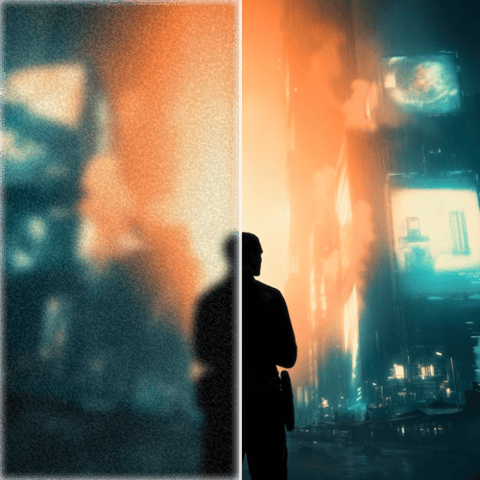

Frequently asked questions
What can an AI video editor change?
Clothing, colors, the setting, the season or weather, the time of day, the lighting and the overall style all work well. Precise edits to small text, logos or exact hand positions are less reliable, because the model regenerates the whole clip.
How long can the video be?
Up to 10 seconds on Kling O3 Pro, Kling O3 Standard and Kling O1. If your clip is longer, the tool tells you its length before charging, so trim it to the part you need and upload again.
Which model should I use?
Start with Kling O3 Pro, the default, for the most faithful edits. Kling O1 and Wan Vace cost less and are fine for quick tests or simple style changes.
Can I cut, trim or join clips here?
No. This tool changes what is in the picture. To trim clips, put them in order and add music, use the Video Composer.
Can I edit the result again?
Yes. Pick the finished video from History and run another edit on it. Change one thing per run for the most predictable results.
Do I need an account?
Yes, an edit runs only when you are signed in. The price for the selected model shows on the button before you press it.
Try it on your own video
The tool is at the top of this page. The price shows on the button before you start.
Back to the tool