
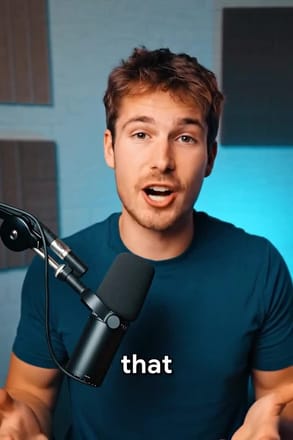
Add Subtitles to Video
Add styled subtitles to any video automatically.
Video tool · transcribed and burned in
Upload a clip with someone talking, choose a caption style, and get the video back with subtitles in the picture.
Add Subtitles is an AI subtitle generator for short social clips. You upload a video or pick one from your history, set the look of the captions, and press Generate. The tool transcribes the speech, times each word to the audio, and burns the subtitles into the video, so they are part of the picture and show up wherever the file is played, including feeds that start muted. The style follows the short video look: three words at a time at the bottom of the frame, bold Montserrat in white, with the spoken word picked out in a highlight color and a short pop as each caption appears. You can change the font, size, weight, both colors, the position and how many words appear at once. Two limits to know before you start. You get a video, not a caption file: there is no SRT or VTT to download or edit, and the captions cannot be turned off once they are in. The transcription runs in English and the panel has no language setting, so speech in other languages will not be transcribed reliably. Read the captions through, since names and uncommon words can be misheard.
Examples
What it does
Seven fonts, four sizes
Choose Montserrat, Poppins, Roboto, Open Sans, Oswald, Bangers or Bebas Neue, each previewed in its own face in the picker. Size runs S, M, L and XL, set to L, and Weight is Normal or Bold, set to Bold.
Text and highlight colors
Text color is white, yellow, green, cyan or red. Highlight color, purple when the panel opens, marks the word being spoken, karaoke style, and can be set to yellow, red, cyan or green.
Position and pacing
Place captions at the top, middle or bottom of the frame. Words / Subtitle sets how much text is on screen at once: 1 word for punchy cuts, 3 or 5 words, or Sentence for longer lines.
How it works
- 1
Add the video
Drop a video onto the upload card or click to choose one. Signed-in users can also pick an earlier result from the history rail. Clear speech without loud music under it gives the cleanest transcript.
- 2
Style the captions
Pick the font, size and weight, then the text and highlight colors. Set the position so captions do not cover a face or the app buttons on a vertical post, and choose how many words show at a time.
- 3
Generate and proofread
Press Generate; the price shows on the button. When the job finishes, the subtitled video is added to your history and opens. Watch it through and check names, numbers and any word the speaker rushed.
Who it's for
For short-form creators
Put word-by-word captions on a talking-head clip for TikTok, Reels or Shorts, so viewers scrolling with the sound off still follow what you say.
For AI video and UGC ads
Caption a lip-synced or AI speech clip you made in AI Canvas, so the spoken script reads on screen in the same bold style as creator ads.
For teams and educators
Add on-screen text to a short product demo, tip or explainer clip that will be shared in a feed or a chat, where most people watch muted.
More to try




Frequently asked questions
Can I download an SRT or caption file?
No. The subtitles are burned into the video, so the result is a single video file with the text in the picture. If you need an SRT or VTT to upload separately or to edit, use a dedicated transcription or captioning tool.
Can I edit a wrong word in the subtitles?
Not inside the tool, since there is no transcript editor and the text is part of the picture. Run it again on the original clip, ideally with clearer audio, or fix the line in a video editor.
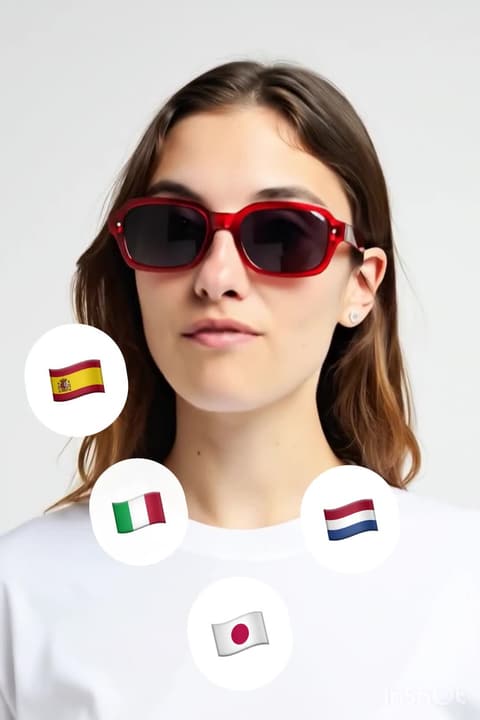
What languages does it support?
The transcription runs in English, and there is no language setting in the panel. For a clip in another language, use a captioning tool that lets you set the spoken language.
Can I make captions appear one word at a time?
Yes. Set Words / Subtitle to 1 Word. The default is 3 words, and Sentence shows longer lines. In every setting the spoken word is marked in the highlight color.
Do the subtitles cover part of the video?
They sit on top of the picture at the position you choose: top, middle or bottom. On vertical videos, pick a position that keeps clear of faces and of the buttons the app draws over the frame.
Do I need an account?
Yes, you need to be signed in before subtitles are added. The price shows on the Generate button before you press it.
Try it on your own video
The tool is at the top of this page. The price shows on the button before you start.
Back to the tool