

Remove Objects from Video
Remove unwanted objects from your video while keeping the rest intact.
Video tool · runs on Bria Video Eraser
Upload a clip, write what should disappear, and get the video back with that object gone and the audio kept.
Video Object Eraser takes something out of a video without masking it frame by frame. You upload a clip, type what to remove in the What to erase box, such as the person on the left, the car in the background or the logo in the corner, and press Generate. Bria's video eraser finds the object from your description, removes it across the frames, and fills the area from the scene around it. The original soundtrack is kept, and the result comes back as an MP4. One limit matters more than any other: the eraser works on about 5 seconds of video. The tool asks it to trim longer clips automatically, so if you upload a longer video you get back roughly the first 5 seconds, not the whole thing. Cut the clip to the moment you need before you upload it. It is AI, so the filled background is a plausible guess, and fast motion, an object that crosses the subject or a busy pattern behind it are where the fill varies most.
Examples
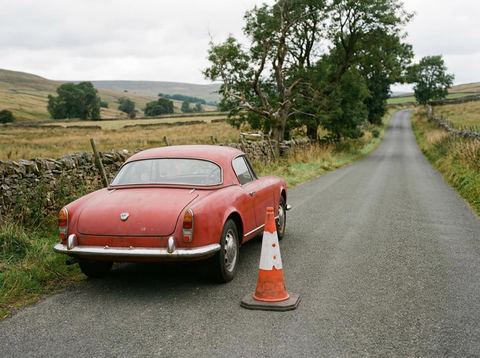

What it does
Describe it, no masking
Instead of painting a mask on every frame, you write a short description of the object. The eraser uses that text to find what to remove, so a few clear words such as the red umbrella or the boom mic at the top do the work.
Sound stays in
The tool asks the eraser to preserve the audio, so dialogue, music and ambient sound from your clip carry over to the result. Only the picture is edited.
Results land in History
After you press Generate, the video uploads and you move to the video workspace, where the job runs in History. When it finishes you can play it, download it, or run the eraser again on the result for another object.
How it works
- 1
Upload a short clip
Drop a video onto the Upload Video card or click to choose one. Signed in, you can also pick an earlier video from the rail on the left. Trim it to about 5 seconds first so the part you need is the part that gets processed.
- 2
Say what to erase
Type the object in the What to erase box. Name one thing and say where it is, for example the person on the left or the watermark in the bottom corner, so the eraser does not pick a similar object elsewhere.
- 3
Generate and watch it through
Press Generate; the price shows on the button. Sign in if asked. When the result appears, play it at full size and watch the area where the object was for flicker or a faint outline.
Who it's for
For creators and vloggers
Take a passerby out of the back of a talking shot, or a stray cup off the desk in a short clip, without reshooting the take.
For product and social videos
Clear a tag, a cable or a distracting sign from a short product clip or B-roll shot before it goes into a reel or an ad.
For travel footage
Remove a tourist walking through the frame or a parked car in front of a view, keeping the sound of the place you filmed.
More to try





Frequently asked questions
How long can the video be?
The eraser processes about 5 seconds. Longer clips are trimmed automatically rather than rejected, so you get back roughly the first 5 seconds. Cut your video to the section you need before uploading.
Can I remove a watermark or logo from a video?
You can describe a watermark or logo as the object to erase. Only remove marks from footage you own or have the rights to edit.
Does it keep the audio?
Yes. The tool asks the eraser to preserve the original audio, so the sound in the result is the sound from your clip.
What if the object is still there or the area flickers?
Make the description more specific, naming its color and where it sits in the frame, and run it again. Objects that move fast, pass in front of a person or sit on a detailed background are the hardest to fill cleanly.
Can I erase more than one thing?
Describe one object per run for the most reliable result. Then pick the finished video from the history rail and run the eraser again for the next object.
Do I need an account?
Yes, you need to be signed in before an erase runs. The price shows on the Generate button before you press it.
Try it on your own video
The tool is at the top of this page. The price shows on the button before you start.
Back to the tool