

Remove Background from Video
Remove the background from your video and replace it with a solid color or transparency.
Video tool · runs on Bria video background removal
Upload a clip, choose transparent or a solid color, and get the video back with only the subject left.
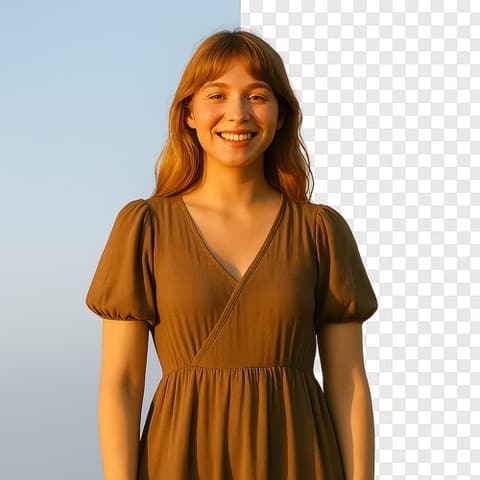
Video Remove Background takes the background out of a video without a green screen or any masking. You upload a clip, pick what should go behind the subject, and press Generate. Bria's video background removal model separates the person or main object from everything around it in every frame, and the background is replaced with the option you chose. There are 11: Transparent, or a solid Black, White, Gray, Red, Green, Blue, Yellow, Cyan, Magenta or Orange. Transparent is the one to use when the clip is going into another edit, since it comes back as a WebM video with an alpha channel that editors and browsers that support transparent WebM can layer over any background. A solid color comes back as an MP4 that plays everywhere, and Green or Blue give you a clean key color for editors that expect a chroma key. Each run has a flat price, shown on the Generate button. The model works best on a clear subject: one person or object, in focus, standing apart from the background. Hair, motion blur, see-through objects and subjects that share colors with the background are where edges get rough, so check the outline at full size before you use it.
Examples


What it does
No green screen needed
The model finds the subject on its own, frame by frame, from ordinary footage shot anywhere. There is nothing to paint or track, and no need to film against a special backdrop.
Transparent or a solid color
Choose Transparent for a WebM with an alpha channel, ready to layer in an editor, or one of 10 solid colors for an MP4. Swatches show each color before you generate.
Results in your History
After you press Generate, the clip uploads and you move to the video workspace, where the job runs in History. When it finishes, play it, download it, or send it on to another video tool.
How it works
- 1
Upload the video
Drop a video onto the Upload Video card or click to choose one. Signed in, you can also pick an earlier result from the rail on the left. Shorter clips come back faster.
- 2
Pick the background
Under the video, choose Transparent or a color swatch. Pick Transparent if you will place the subject over other footage, or a solid color for a clean finished look.
- 3
Generate and check the edges
Press Generate; the price shows on the button. Sign in if asked. When the result is ready, watch it at full size and look at hair, hands and fast movement, where edges are hardest.
Who it's for
For creators and streamers
Cut yourself out of a talking clip and place it over gameplay, slides or B-roll in your editor, without setting up a green screen at home.
For product and ad videos
Isolate a product or presenter and put them on a plain brand color, so a clip shot in a busy room looks like a studio shot.
For editors and designers
Get a transparent video of a person or object to composite into a motion graphic, a website hero or a presentation.
More to try


Frequently asked questions
How do I remove the background from a video?
Upload the clip here, choose Transparent or a solid color, and press Generate. The model removes the background in every frame and replaces it with your choice; no mask or green screen is needed.
What format is the transparent video?
Transparent results are WebM files with an alpha channel. Most video editors and Chrome-based browsers can use them; if your editor or player does not support transparent WebM, pick a solid color for an MP4 instead.
Can I put a new image or video behind the subject?
The tool gives you transparency or a solid color, not a custom background. Download the transparent version and place your own footage behind it in any editor that takes alpha video, or use Green as a key color.
Why are the edges rough in some frames?
Fine hair, motion blur, glass and subjects that blend into the background are the hardest cases. A clip with a well-lit subject against a contrasting background gives the cleanest outline.
Does it work on objects, not just people?
It keeps the main subject and removes the rest. It is built around people; pets and products can work too, but check the result. Keep one clear subject in the frame so the model knows what to keep.
Does it keep the sound?
In our test runs the original audio came back with the result, in both the transparent WebM and the solid color MP4. Play the result before you rely on it.
Do I need an account?
Yes, you need to be signed in before a video is processed. The price shows on the Generate button before you press it.
Try it on your own video
The tool is at the top of this page. The price shows on the button before you start.
Back to the tool