

AI Lip Sync
Sync lip movements in your video to match any audio or voice recording.
Video tool · runs on Kling Lip Sync
One short video of a face, one voice track. You get the video back with the mouth moving to the new words.
Lip Sync takes two inputs: a video clip where a face is visible, and an audio file or a recording you make in the browser. Kling's lip sync model, audio to video, reads the speech in the audio and redraws the mouth in your clip so it forms those words. The rest of the frame comes from your video, so this is not a talking avatar made from a photo; you need footage of the person first. The clip has to be 2 to 10 seconds long, and the voice track 2 to 60 seconds and no larger than 5MB. The page checks both before anything is sent, so a file outside the limits gets a clear message instead of a failed job. Results are AI generated, and a side profile, a covered mouth or fast head movement can make the sync less exact.
Examples
What it does
Upload a voice or record one
Add an MP3, M4A, AAC, WAV or OGG file, or press Record Voice and speak into your microphone. Browser recordings are converted to WAV before upload, so a recorded line works the same as a file.
Your footage, new words
Only the mouth is meant to change. The person, the background and the camera move stay from your clip, which suits a retake of one line, a dubbed sentence or a short reply video.
Limits checked up front
Video must be MP4 or MOV, 2 to 10 seconds, at 720p or 1080p (720 to 1920 pixels per side). Audio must be 2 to 60 seconds and 5MB or smaller. If either is off, the Generate button tells you which rule failed.
How it works
- 1
Add the video
Upload a short clip with the face in view, or pick one of your earlier videos from the history rail on the left. A front-facing, well-lit face with the mouth uncovered gives the model the clearest target.
- 2
Add or record the audio
Drop an audio file on Add Voice Recording, or press Record Voice and read your line. Keep the speech close to the length of the clip so the words have room to land.
- 3
Generate
Sign in if asked and press Generate; the price shows on the button. Both files upload, you move to the video workspace, and the result appears in your History when the job finishes.
Who it's for
For creators fixing a take
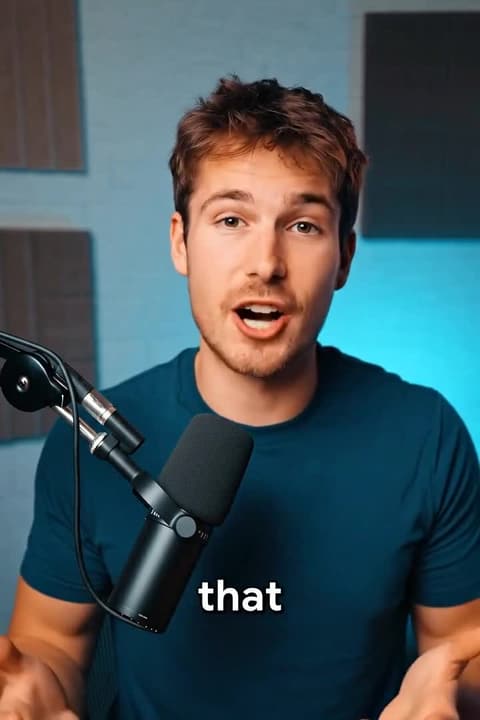
Flubbed one sentence in a talking-head clip? Record the line again and sync it onto the footage you already have instead of setting up the shot a second time.
For dubbing and localization
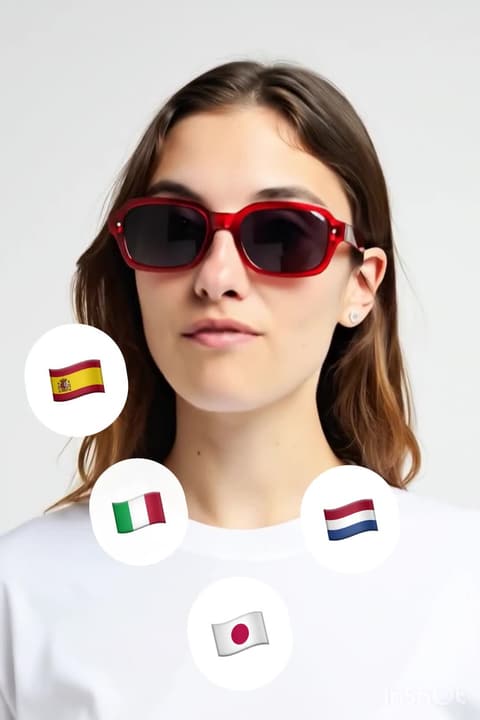
Pair a clip with a voice track in another language so the mouth follows the new speech. Translate Video handles the translation; Lip Sync is for when you already have the audio.
For marketers and educators
Swap the line in a short product or lesson clip: a new price, a new date, a different call to action. Short clips under 10 seconds suit ads, reels and course intros.
More to try



Frequently asked questions
Which languages does AI lip sync work with?
The tool has no language setting. Kling follows the sounds in the audio track, so you can try any language. Clear speech without music or background noise tends to sync best; check the result, especially for fast speech.
Can I use my own voice recording?
Yes. Press Record Voice to capture a line in the browser, or upload a recording you made elsewhere. A voice from Create Voiceover or Voice Clone works too, as long as the file is 2 to 60 seconds and 5MB or smaller.
How long can the video and the audio be?
The video can be 2 to 10 seconds and the audio 2 to 60 seconds, up to 5MB. For a natural result, keep the speech about as long as the clip, for example a 5 second clip with a 5 second line.
Does lip sync work on cartoons or animated characters?
It is built for a visible face. A clearly drawn face with a mouth may work, but stylized characters, animals and masks are less predictable. Try a short clip first and check the mouth before using it.
Why was my video rejected?
The usual reasons are length, format and size. The clip must be MP4 or MOV, 2 to 10 seconds, and 720p or 1080p. WebM files and small phone clips under 720 pixels on the short side are turned away before upload.
Can I make a photo talk with this?
No, this tool needs a video. To turn a still image into a speaking clip, use Create Speech, which starts from a character or a face photo plus a written script.
Try it on your own video
The tool is at the top of this page. The price shows on the button before you start.
Back to the tool