
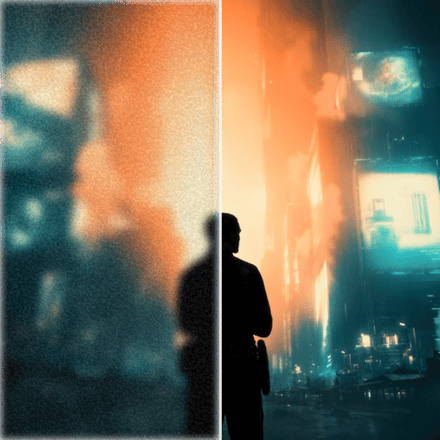
AI Video Upscaler
Upscale any video to a higher resolution.
Video tool · 7 upscale models
Upload a clip, choose a model and a target size, and get back a sharper, higher resolution version.
Upscale Video makes a clip larger and sharper with an AI upscaler. You upload a video or pick one from your history, choose one of seven models, set its options and press Upscale. Bytedance Upscaler is selected when the panel opens: it takes a target of 1080p, 2K or 4K, set to 2K, and an output frame rate of 30 or 60 fps. The other models give you different controls. Topaz Video Upscale scales by a factor from 1x to 4x and offers presets such as Proteus, Artemis, Nyx and Gaia. SeedVR aims for a target from 720p to 2160p. FlashVSR is the fast option with a quality setting. Crystal, the RealESRGAN based Video Upscaler and Bria Increase Resolution round out the list. An upscaler adds detail that was not recorded, so faces, text and fine textures are reconstructed rather than recovered. It can make soft footage look cleaner, but it cannot turn a badly blurred or shaky shot into a sharp one. Watch the result at full size before you use it.
Examples


What it does
Seven models, one panel
Bytedance, Topaz, FlashVSR, SeedVR, Crystal, Video Upscaler and Bria are in one model picker. The panel shows only the settings the selected model supports: Target Resolution, Target FPS, Upscale Factor, Quality or Preset.
Targets up to 4K
Bytedance goes to 1080p, 2K or 4K. SeedVR offers 720p, 1080p, 1440p and 2160p, set to 1440p. Factor models scale the frame size: Topaz up to 4x, Video Upscaler up to 8x, Crystal up to 10x with output capped at 5K on the long edge.
Frame rate options
Bytedance can output 30 or 60 fps, and Topaz 24, 30 or 60 fps, both set to 30 when the panel opens. That lets you upscale and smooth out motion in the same run.
How it works
- 1
Add the video
Drop a video onto the upload card or click to choose one. Signed-in users can also pick an earlier result from the history rail. The clip opens with the Upscale Video panel beside it.
- 2
Pick a model and a target
Keep Bytedance or choose another model, then set its options. Choose a target above your clip's current resolution: asking for 1080p on a clip that is already 1080p gives the upscaler nothing to do and the job can fail.
- 3
Upscale and compare
Press Upscale; the price shows on the button and depends on the model and the length of the clip. When the job finishes, the new video is added to your history and opens, so you can check faces and edges at full size.
Who it's for
For AI video makers
Many video models render at 720p or 1080p. Upscale a Veo, Kling or Seedance clip you made in AI Canvas to 2K or 4K before it goes into an edit or onto a large screen.
For old and phone footage
Bring a low resolution phone clip or an old digitized home video up to a size that holds up on a modern display, and pick a Topaz preset suited to the footage.
For social and ad editors
Lift a short B-roll or product shot to 4K so it matches the rest of a project, or render it at 60 fps for smoother motion in a reel.
More to try


Frequently asked questions
Can it upscale a video to 4K?
Yes. Pick Bytedance and set Target Resolution to 4K, or SeedVR with 2160p. With Topaz, a 2x factor turns a 1920 by 1080 clip into 3840 by 2160. The result is reconstructed detail, so check it at full size.
Which model should I pick?
Start with Bytedance, the default, when you know the target size you want. Try Topaz for its presets and frame rate control, FlashVSR when speed matters most, and SeedVR for a set target with consistent detail from frame to frame.
Why did my upscale fail?
The most common cause is a clip that is already at or above the target. Bytedance, for example, needs the input's shorter side below the target size, so a 1080p clip cannot go to 1080p. Choose a higher target or a different model.
How is the price worked out?
It depends on the model and, for most models, on the length of the clip, counted in blocks of up to 10 seconds. Crystal is charged per clip instead. The Upscale button shows the price for your settings before you press it.
Will it fix a blurry or out of focus video?
It can clean up soft, low resolution or compressed footage. It cannot recover detail that motion blur or a missed focus destroyed; the model will invent texture there, which can look artificial on faces and text.
Do I need an account?
Yes, you need to be signed in before an upscale runs. The price for your model and clip shows on the Upscale button.
Try it on your own video
The tool is at the top of this page. The price shows on the button before you start.
Back to the tool