Image tool · nine aspect ratios, no prompt
Change the Aspect Ratio of Any Image
Upload a photo, pick a new shape, and get the same scene recomposed for a banner, a Story or a print.
Reframe changes the aspect ratio of an image without cropping by hand. You upload a photo, choose one of nine ratios from 21:9 ultra-wide to 9:21 ultra-tall, and a dedicated AI reframe model rebuilds the picture at the new shape while keeping the main subject in view. Where the new frame is shorter than your photo in one direction, it trims; where it needs more than the photo shows, it generates the missing scenery. In our lake example, a wide 16:9 shot became a tall 9:16 with more pebble shore below the canoe and more sky above the peaks. There is no prompt and no setting beyond the ratio. One thing to know before you start: the model redraws the image rather than pasting your original pixels into a bigger canvas, so the subject can shift, change size or pick up small new details. Compare the result with the original before you publish it.
Examples
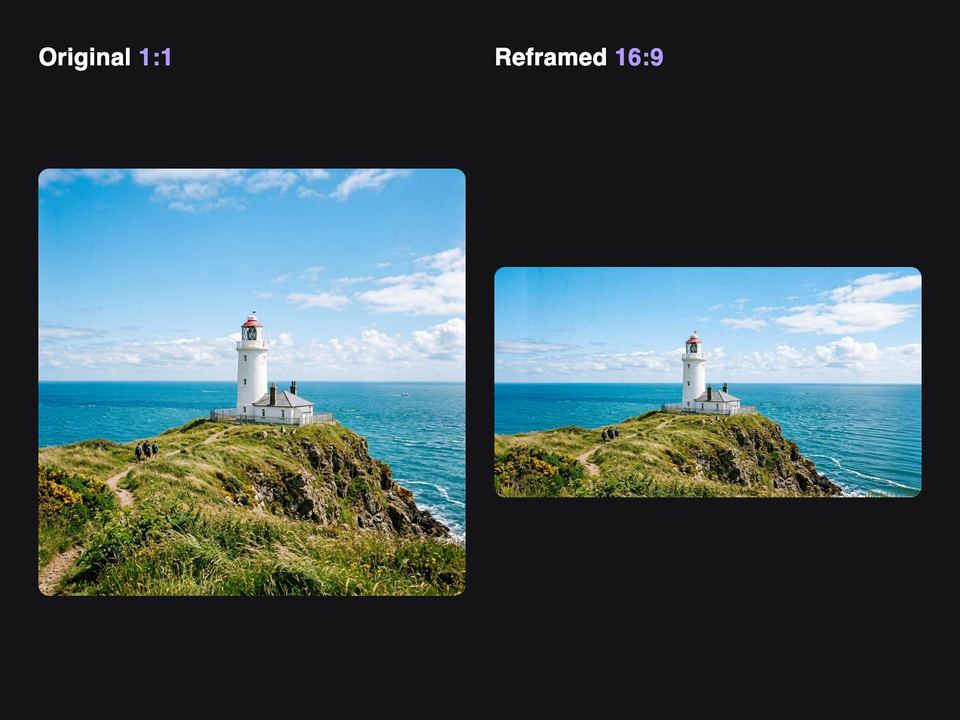
“Lighthouse photo reframed from 1:1 to 16:9”
Try it on your own photo ↑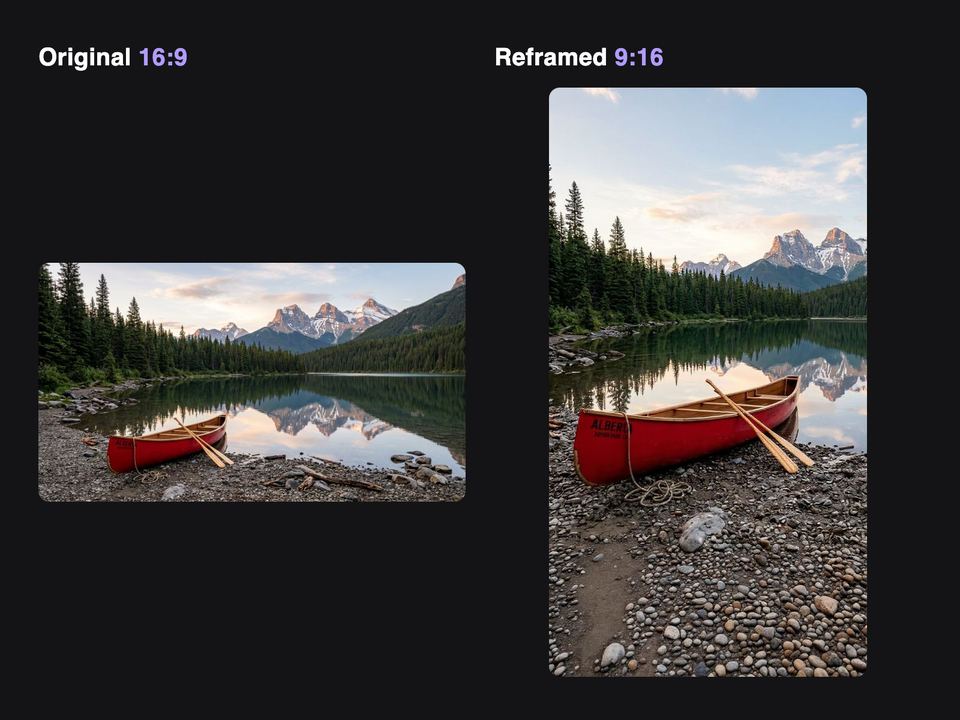
“Lake photo reframed from 16:9 to 9:16”
Try it on your own photo ↑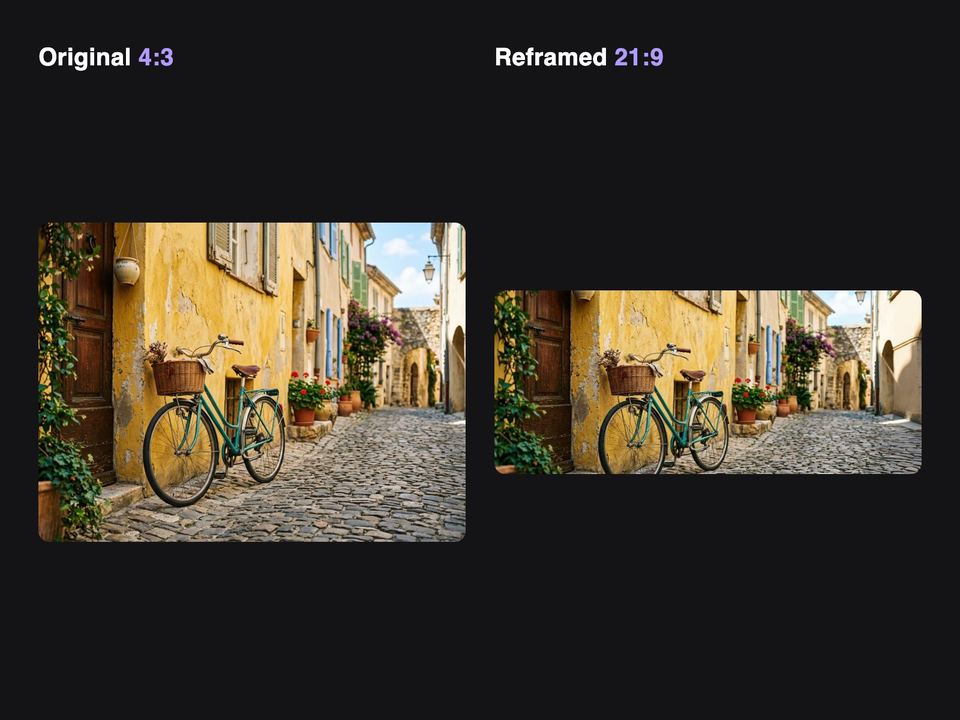
“Street photo reframed from 4:3 to 21:9”
Try it on your own photo ↑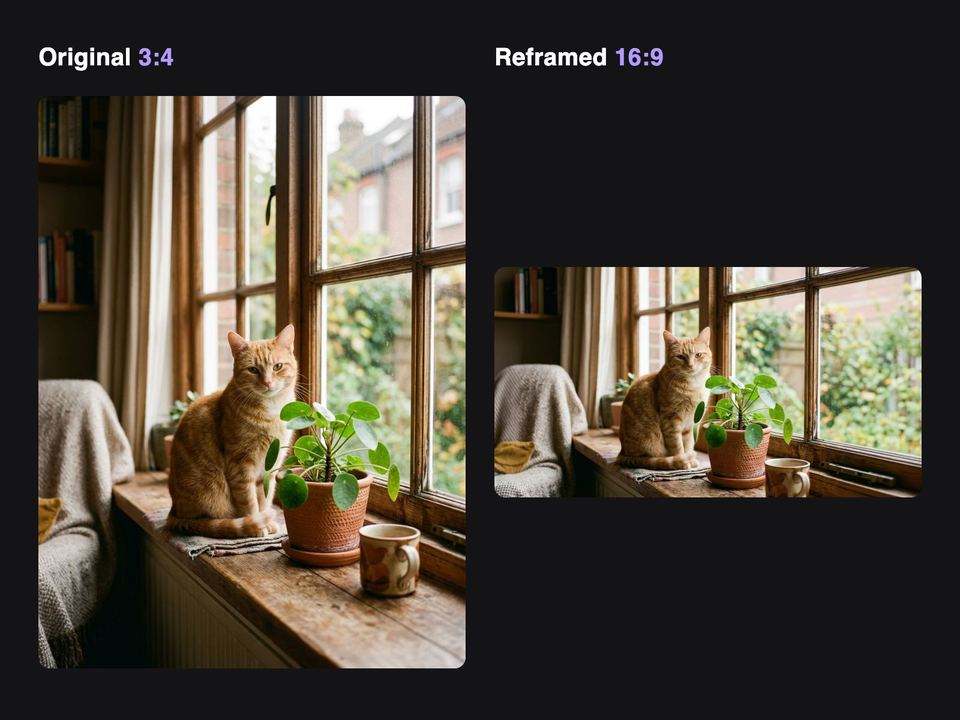
“Cat photo reframed from 3:4 to 16:9”
Try it on your own photo ↑Why this image tool
Nine ratios in three groups
Square: 1:1 for social feeds. Landscape: 21:9 ultra-wide, 16:9 for banners and covers, 3:2 and 4:3 for prints and galleries. Portrait: 9:21 ultra-tall, 9:16 for Stories and Reels, 2:3 for prints and 3:4 for social posts. Apply stays off if you pick the ratio your photo already has.
The subject stays in the shot
The model recomposes around what matters in the frame. In our four examples the lighthouse, the canoe, the bicycle and the cat all stayed in view going from 1:1 to 16:9, 16:9 to 9:16, 4:3 to 21:9 and 3:4 to 16:9.
Results land in History
After you press Apply you move to the image workspace, where the reframed image appears in History. Our results came back at about one megapixel, for example 1392 by 752 pixels at 16:9, so run Upscale afterward if you need a larger file.
How it works
- 1
Upload the photo
Drop an image onto the Upload Photo card or click to choose one. Signed in, you can also pick an earlier image from the rail on the left. The photo opens with the Reframe panel ready.
- 2
Choose the new aspect ratio
Pick a ratio from the Square, Landscape or Portrait group. Each one has a short note on where it fits, such as widescreen for banners or vertical for Stories and Reels.
- 3
Press Apply
The price shows on the Apply button; one reframe is 20 credits. Sign in if asked. If the new composition is not what you wanted, run it again, since each run can frame the scene a little differently.
Who it's for
For social media managers
Turn one photo into a 1:1 feed post, a 9:16 Story and a 16:9 video cover, instead of shooting three times or cutting the subject out with a hard crop.
For web and email designers
Get a 21:9 or 16:9 hero banner from a photo that was shot in portrait, so a product or a person still sits inside the wide frame with room for a headline.
For prints and frames
Match a phone photo to a standard print shape such as 2:3 or 3:2, then upscale the result before you send it to a print shop.
More to try



Frequently asked questions
How do I change the aspect ratio of an image without losing the subject?
Upload the photo, choose the new ratio and press Apply. Reframe recomposes the picture around the main subject instead of cutting a fixed rectangle from the middle, so a person or object near the edge is less likely to be cut off.
Does Reframe extend the image or crop it?
It does whichever the new shape needs. Going from 1:1 to 16:9, our lighthouse photo was mostly trimmed at the top and bottom. Going from 16:9 to 9:16, the lake photo gained new shore and sky that the model generated.
Will the photo look exactly like the original?
Not pixel for pixel. The model redraws the image at the new ratio, so expect small changes, especially in text, faces and fine patterns. In our lake example, the canoe came back larger and with letters on its side that were not in the original.
Which aspect ratios can I choose?
Nine: 1:1, 21:9, 16:9, 3:2, 4:3, 9:21, 9:16, 2:3 and 3:4. There is no custom ratio or pixel size field.
Can I describe what to add in the new space?
No, Reframe takes no prompt. If you want to steer the result, reframe first and then open the image in Edit Image with a sentence describing the change.
Do I need an account?
Yes, you need to be signed in before a reframe runs. It costs 20 credits per image, and the price shows on the Apply button before you press it.
Try it on your own photo
Pay only for what you generate. The price shows on the button before you start.
Upload a photo