
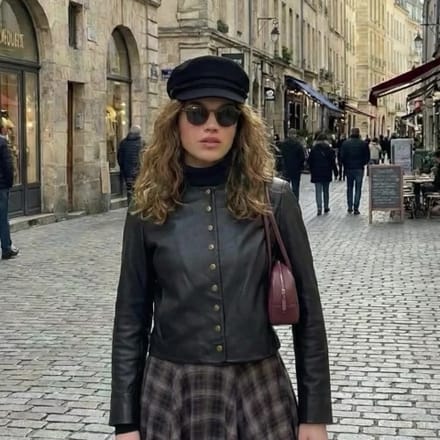
Change the Outfit in Your Photo
Change the outfit in your photo using a reference outfit while keeping everything else the same.
Two photo tool · runs on Nano Banana Pro
One photo of you, one photo of the clothes you want to try. You get your photo back wearing them.
Change Outfit is an outfit swap that works from two pictures. The first is the person who will wear the clothes. The second is the outfit itself: a dress on a store page, a jacket a friend wore, a look you saved from a magazine. Nano Banana Pro is told to make the person in the first photo wear the outfit from the second without changing the rest of the photo, so your pose, face and background are meant to stay put. That is the difference from the Clothing effect, which offers 146 ready-made outfit presets and needs only your photo. Use Clothing to browse ideas; use Change Outfit when you already have the exact piece in a picture. Results are AI generated, so fit, fabric and small details can vary from run to run.
Examples
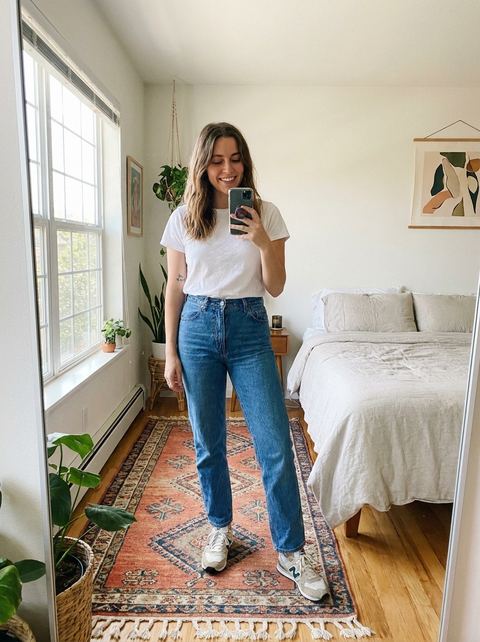
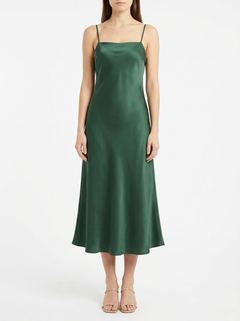
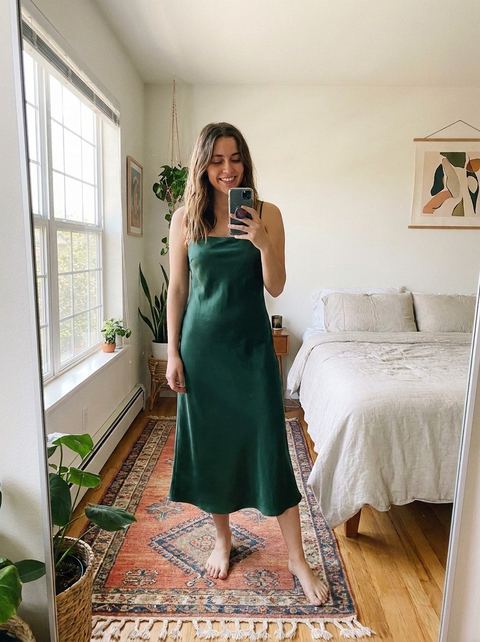
“Full-length mirror selfie of a woman in jeans and a white T-shirt, plus a product photo of a green satin midi dress on a store model”
Try it on your own photo ↑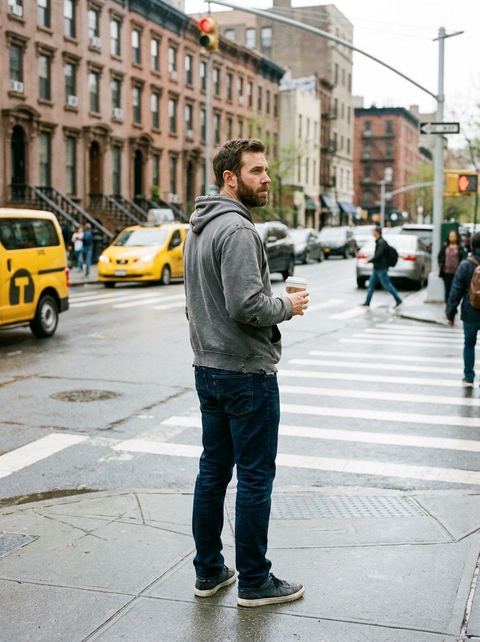
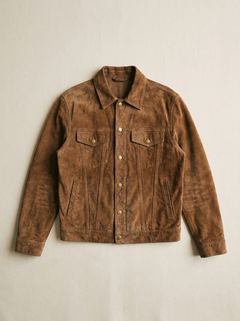
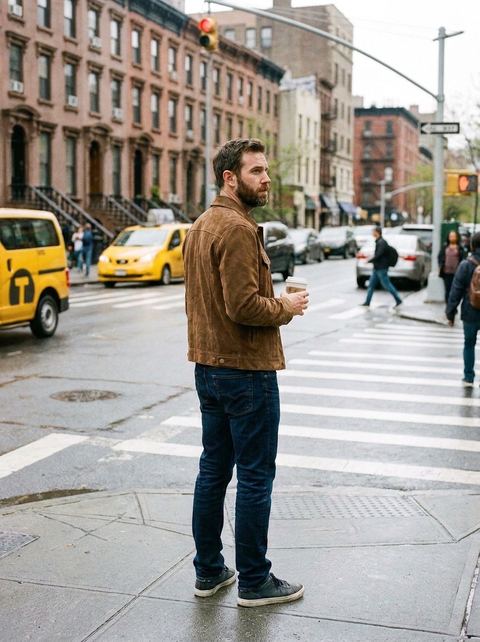
“Photo of a man standing on a city street in a grey hoodie, plus a flat-lay photo of a brown suede trucker jacket”
Try it on your own photo ↑What it does
Copy a specific outfit
The second slot takes any image of clothing, worn by a model or laid flat. The tool reads the outfit from that picture instead of a written preset, which is what you want for a particular jacket, uniform or dress.
The rest of your photo stays
The instruction behind the tool asks for the outfit to change and nothing else. Your pose, setting and framing are kept as the starting point, and each run returns one image.
Optional styling notes
A short note steers the details the outfit photo cannot show: a looser fit, sleeves rolled up, keep my own shoes, leave the watch untouched. It is added after the tool's own instruction.
How it works
- 1
Add your photo
Upload a photo of the person who will wear the outfit, or pick one of your recent images from the history rail. A clear, well-lit shot where the body is visible gives the model the most to work with.
- 2
Add the outfit photo
Upload a picture of the clothes you want to copy. One outfit per photo works better than a busy group shot, and a front-facing view helps match the cut.
- 3
Generate
Add a styling note if you like, sign in if asked, and press Generate; the price shows on the button. The result appears in your Create Image history with both input photos beside it, ready to rerun or edit.
Who it's for
For online shoppers
Saw a coat on a store page? Try clothes from that picture on a photo of yourself before you order. It is a visual preview, not a sizing tool, so check the size chart too.
For small clothing brands
Put a new piece from a flat-lay shot onto an existing model photo to preview it in a lookbook or a product post before the next shoot.
For costume and event planning
Match a group to a reference: put the same team jersey, bridesmaid dress or theme party costume on each person's photo to see how it comes together.
More to try


Frequently asked questions
How do I put clothes from one photo onto another?
Add the person's photo in the first slot and the clothing photo in the second, then generate. Nano Banana Pro edits the first photo so the person wears the outfit from the second.
How is this different from the Clothing effect?
The Clothing effect uses 146 preset outfits, like suits, dresses and coats, and needs only your photo. Change Outfit copies the clothes from a second photo you provide, so it suits a specific item you have already found.
Will my face and background change?
The tool is told to change only the outfit and keep the rest of the photo. It usually holds the face, pose and background, but it is AI, so small changes can happen. Run it again if something drifts.
Can I try on clothes from a picture on a website?
Yes. Save the product image and upload it as the outfit photo. A clean shot of the garment with little else in frame tends to transfer best.
Does it show how the clothes will fit?
No. It shows how the look could appear on you, drawn by AI. It does not know your measurements or the garment's size, so use the brand's size guide for fit.
Try it on your own photo
The tool is at the top of this page. The price shows on the button before you start.
Back to the tool