Image tool · one step, no settings
Restore Old Photos with AI
Upload a scan or a phone photo of an old print, press Generate, and get a repaired version back in your History.
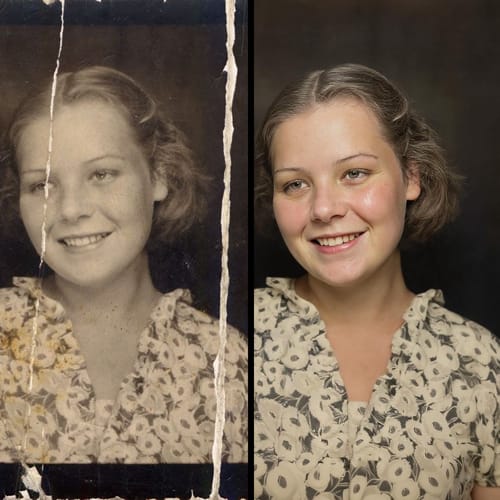
Restore Photos takes a damaged old photo and returns a cleaned up version in one run. It uses a photo restoration model that repairs scratches, creases, tears, stains and fading, and fills in missing corners. One thing to know before you start: it also colorizes. A black and white or sepia print comes back in full color, and a color snapshot with a faded orange or green cast comes back with the cast corrected. If you want to keep the photo black and white, plan to convert the result back to grayscale afterward. There are no sliders, so the model decides how far to go. It is AI, so repaired areas and added color are its best guess, not a record of what was there.
Examples
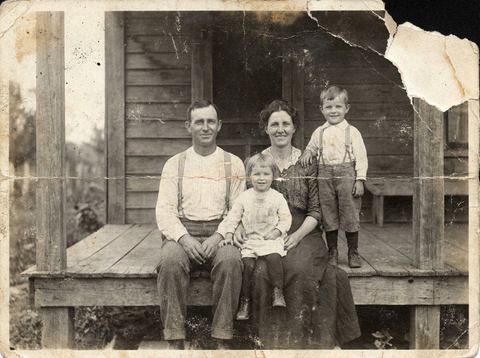
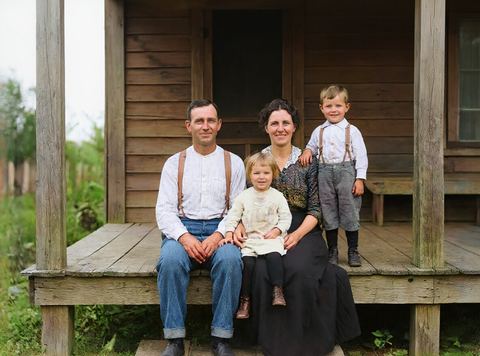
“Restored in one step”
Try it on your own photo ↑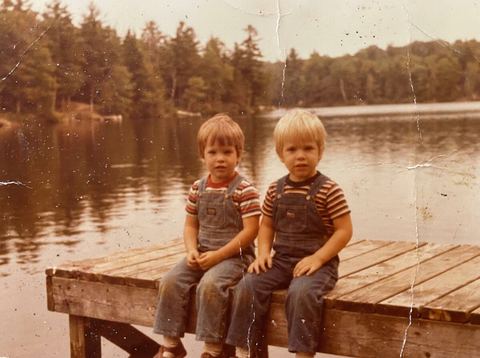
“Restored in one step”
Try it on your own photo ↑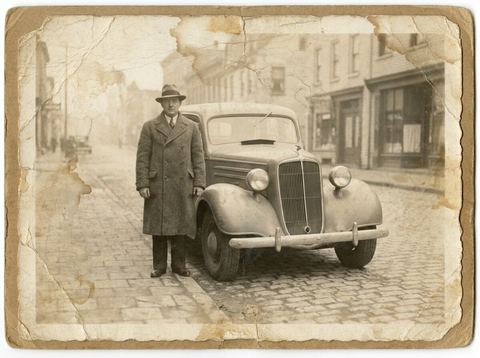
“Restored in one step”
Try it on your own photo ↑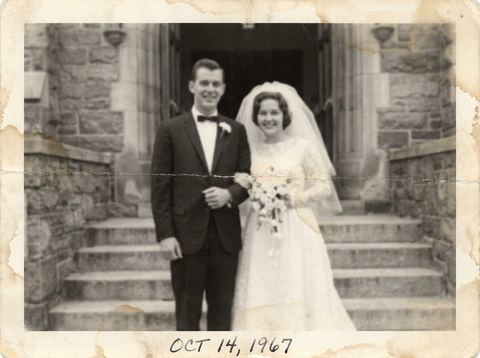
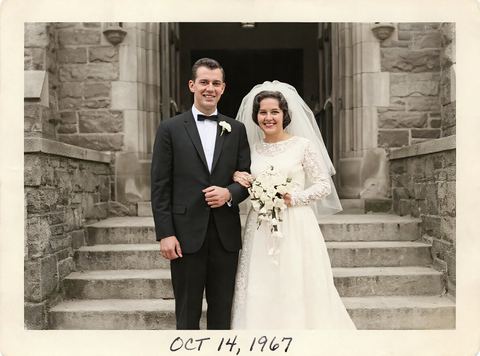
“Restored in one step”
Try it on your own photo ↑Why this image tool
Damage repair in one pass
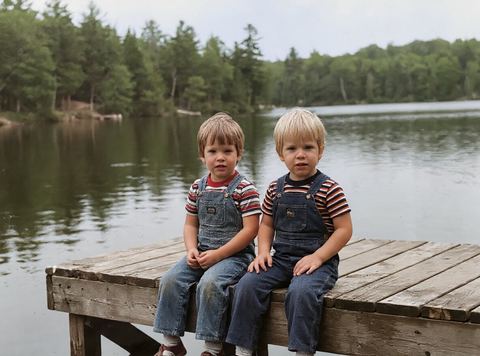
Scratches, crease lines, foxing spots, water stains and torn corners are all handled in the same run. In our 1950s family example, a crease across the middle and a torn top corner were rebuilt along with the faded tones.
Black and white turns to color
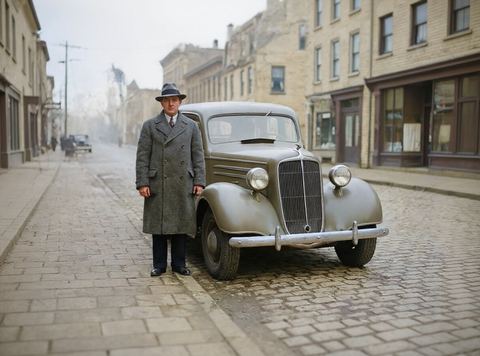
Monochrome and sepia prints come back colorized, with skin tones, clothing, wood and foliage given natural looking colors. Our 1930s street and 1960s wedding examples both started black and white and came out in color.
Faded color gets corrected
Prints from the 1970s and 1980s often drift toward orange, magenta or green as the dyes age. The model rebalances the color, as in our 1970s snapshot, where a heavy orange cast was taken out.
How it works
- 1
Scan or photograph the print
A flatbed scan gives the most to work with. A phone photo works too: lay the print flat, shoot it straight on in even daylight, and avoid glare from a glossy surface.
- 2
Upload it and press Generate
Drop the file onto the upload card, or pick an earlier image from the rail on the left if you are signed in. The price shows on the Generate button. Sign in if asked.
- 3
Check faces, then save
You move to the image workspace, where the restored photo appears in History. Zoom in on faces and compare with the original before you download or print it.
Who it's for
For family historians
Bring a box of scanned prints from grandparents back to a state you can share with relatives or add to a family tree, and keep the original scans next to the results.
For gifts and memorials
Repair a wedding portrait or a parent's childhood photo for an anniversary, a frame or a memorial slideshow. Upscale it afterward if it is going to print large.
For local history projects
Clean up old street scenes and shopfronts for a newsletter, a society page or a social post, and say clearly that the color was added by AI.
More to try



Frequently asked questions
Does it colorize black and white photos?
Yes, and there is no switch to turn that off. Black and white and sepia photos come back in color. If you want the restored photo in black and white, convert the result to grayscale in any photo editor.
Will the faces change?
They can. Where a face is blurred, scratched or partly missing, the model rebuilds it, and small details such as eyes, teeth and hairlines may not match the real person exactly. Compare with the original, and run it again if a face looks off.
Can it fix a torn or missing corner?
It fills torn and missing areas from the surrounding picture. Small losses at an edge or corner usually work well; a missing face or a large missing section is a guess.
What resolution will the restored photo be?
There is no size setting; the model decides the output size. Start from the best scan you can make. If you need the result larger for printing, open it in Upscale afterward.
Do I need an account?
Yes, you need to be signed in before a restore runs. The price for one restore shows on the Generate button before you press it.
Try it on your own photo
Pay only for what you generate. The price shows on the button before you start.
Upload a photo