Image tool · 8 text styles, 3 placements
Add Text to Photo
Upload a photo, type the line you want on it, choose a style, size and placement, and get the image back with the words drawn in.

Add Text puts your words onto a photo with an image model instead of a text box. You upload a picture, type a line such as Happy Birthday Mia, Grand Opening or Open 9 to 5, and choose three things: a Text Style, a Size and a Placement. The panel opens on Smart, Large and Center. Smart lets the model choose a typography that suits the scene; the other seven styles are Bold, Playful, Elegant, Handwritten, Groovy, Retro and Modern. GPT Image 1.5 then draws your text in that style, at that size, at the top, center or bottom of the image, and is told to keep everything else in the photo the same. Because the model draws the lettering rather than setting a font file, the exact typeface, the color and the precise spot within the top, center or bottom band are its call, and each run can look a little different. If you need a set brand font or pixel-perfect position, use your usual design editor. AI models can also misspell or drop letters, so read every word in the result before you share it.
Examples


“"Summer Sale 30% Off", Bold, Large, Top”
Try it on your own photo ↑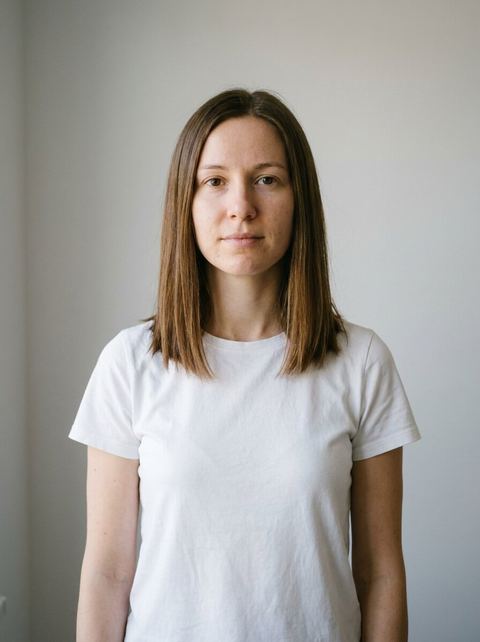
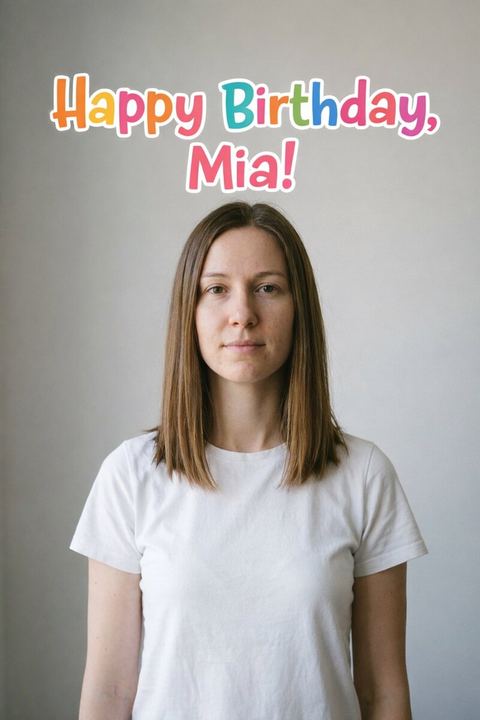
“"Happy Birthday, Mia!", Playful, Large, Top”
Try it on your own photo ↑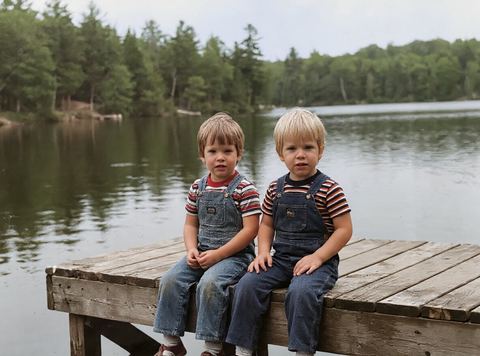
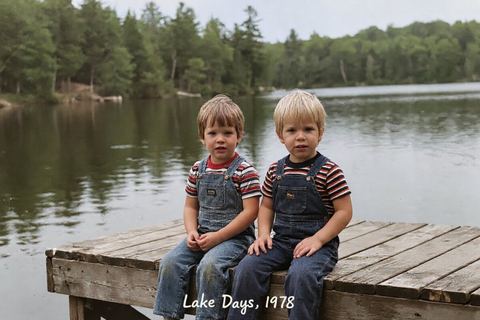
“"Lake Days, 1978", Handwritten, Small, Bottom”
Try it on your own photo ↑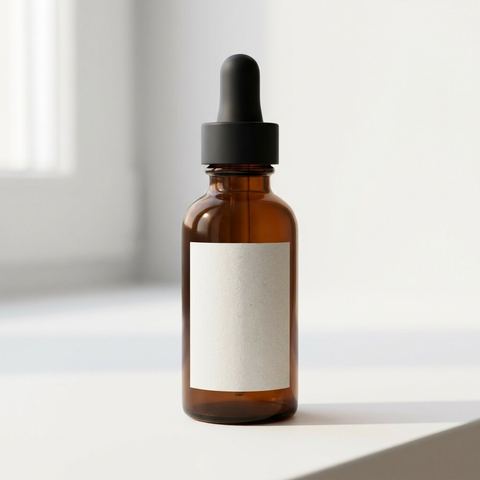

“"New: Citrus Glow Serum", Smart, Large, Center”
Try it on your own photo ↑Why this image tool
Eight text styles
Smart picks a typography to fit the photo. Bold, Playful, Elegant, Handwritten, Groovy, Retro and Modern each ask for that look, each shown with a small preview in the Text Style picker, so a sale banner and a wedding card can get very different lettering from the same tool.
Size and placement
Size is Small or Large, set to Large. Placement is Top, Center or Bottom, set to Center. Together they cover the common layouts: a headline across the top, a centered title or a caption along the bottom.
The rest of the photo is kept
The instruction tells the model to leave the background, subject, composition, lighting and any existing text as they were and only add your line. After you press Apply, the result appears in History in the image workspace, ready to download or run again.
How it works
- 1
Upload the photo
Drop an image onto the Upload Photo card or click to choose one. Signed in, you can also pick an earlier image from the rail on the left. The photo opens with the Add Text panel ready.
- 2
Type the text and set the look
Enter the words exactly as they should appear, with the capitals and punctuation you want, then pick a Text Style, a Size and a Placement. Short lines of a few words come out cleanest.
- 3
Apply and check the spelling
The price shows on the Apply button. Sign in if asked, and the result appears in History. Zoom in and read every letter; if a word is wrong or the style is not what you pictured, run it again or try another style.
Who it's for
For greetings and invitations
Turn a party photo or a pet picture into a card by adding Happy Birthday, Save the Date or a name in Elegant or Handwritten lettering.
For small business posts
Put Now Open, Sale This Weekend or your opening hours onto a storefront or product photo in Bold, at the top or bottom, for a quick social post without opening a design app.
For memes and mockups
Add a caption along the bottom of a reaction photo, or see how a slogan looks in Retro or Groovy lettering before you commit to a real design.
More to try




Frequently asked questions
Can I choose the font, color or position?
You choose a style, a size and whether the text goes at the top, center or bottom. The model draws the exact lettering and picks the color to suit the photo. For a specific font file, a set color or an exact position, add the text in a design editor instead.
Why is a word misspelled in the result?
Image models draw text as part of the picture, and they sometimes swap, repeat or drop letters. Run it again, shorten the line, or open the result in Change Text and type the correct wording.
Does it change the rest of the photo?
The model is told to keep the background, subject, lighting and existing text the same, but it redraws the image to add your line, so small details can still shift. Compare the result with your original before you use it.
Can I change or remove text that is already in a photo?
Yes, with the related tools. Change Text replaces the wording on a sign or label with what you type, Text Styles restyles existing lettering, and Remove Text clears visible text from the image.
Do I need an account?
Yes, you need to be signed in before the text is added. The price shows on the Apply button before you press it.
Try it on your own photo
Pay only for what you generate. The price shows on the button before you start.
Upload a photo