
AI Photo Editor
Edit any image just by describing the change.
Image tool · describe the change, 18 models
Upload a photo, write what should change, and get the edited version back in your History.
Edit Image is photo editing with AI that works from a sentence instead of sliders, layers or selection tools. You upload a photo, type the change you want, such as "make it a snowy winter evening" or "change the car color to mint green", and an image model redraws the photo with that change while keeping the rest of the scene. You choose from 18 models that accept a photo as input. The default is Google's Nano Banana 2, and the list also includes Nano Banana Pro, GPT Image 2, Flux 2 Pro, Flux Kontext Max, Seedream 5 Lite, Grok Imagine, Reve and Qwen Image 2.0. Each run returns one to four versions. One thing to know before you start: the model regenerates the whole picture, not only the part you mention. Small details outside your edit, like lettering on a sign or the pattern of a rug, can shift a little, and two runs of the same prompt will not match exactly.
Examples
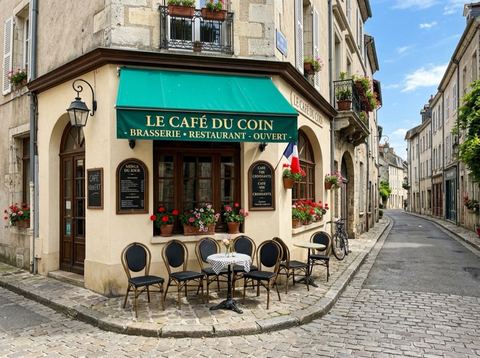

“Make it a snowy winter evening with warm light glowing from the windows”
Try it on your own photo ↑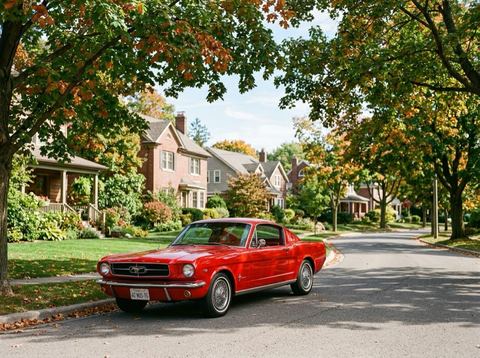
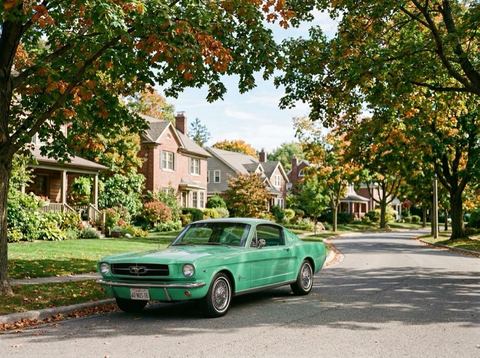
“Change the car color to mint green and keep everything else the same”
Try it on your own photo ↑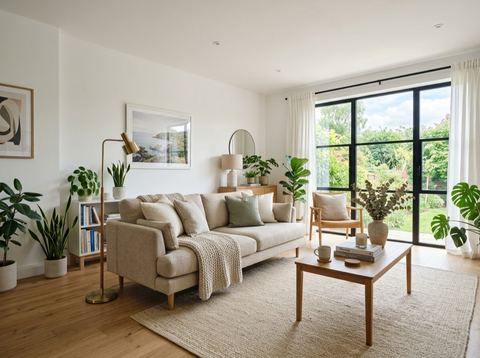
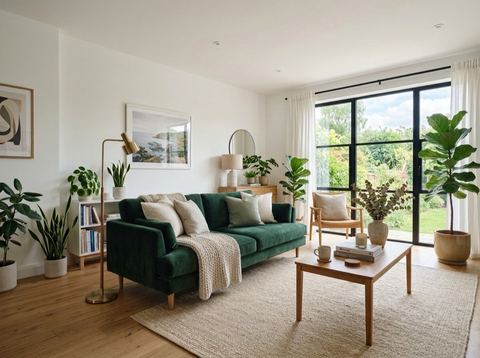
“Replace the sofa with a dark green velvet sofa and add a tall fiddle leaf fig plant beside the window”
Try it on your own photo ↑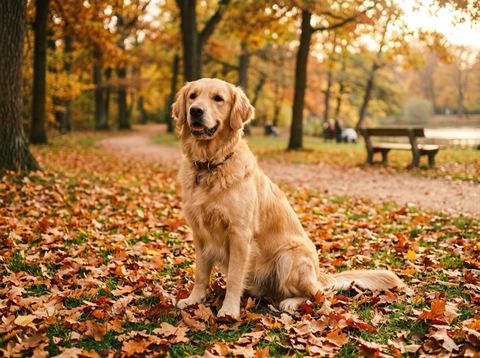
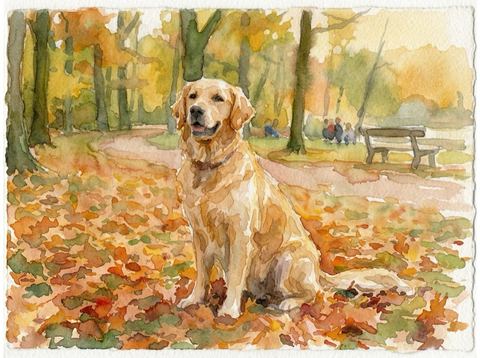
“Turn this photo into a loose watercolor painting on textured paper”
Try it on your own photo ↑What it does
Edits in plain language
Change a color, swap one object for another, add something to the scene, move the photo to a different season or time of day, or turn it into a painting. All four examples on this page were made with Nano Banana 2 from a single sentence each, and the street, the car, the room and the dog kept their shape and position.
Pick the model for the job
Prices run from 8 to 40 credits per image depending on the model. Nano Banana 2 costs 20. Nano Banana Pro, GPT Image 2, Flux 2 Pro, Flux Kontext Max and HY-WU Edit cost 40. Lighter models such as Flux 2 Klein 4B, Wan 2.7 and Qwen Image 2.0 cost 8, which suits quick drafts.
Aspect ratio and number of images
Auto is the default and lets the model follow your photo; with Nano Banana 2 our 4:3 photos came back at 4:3. You can also choose a ratio the model supports: Nano Banana 2 offers nine, from 1:1 to 16:9, 9:16 and 4:5, while GPT Image 2 offers 1:1, 2:3 and 3:2. Ask for up to four images in one run; the price is per image.
How it works
- 1
Upload a photo
Drop an image onto the Upload Photo card or click to choose one. Signed in, you can also pick an earlier image from the rail on the left. The photo opens with the Edit panel ready.
- 2
Describe the change
Write it in the box that says Describe what to change. One clear change per run works best. If something must stay as it is, say so, as in "change the car color to mint green and keep everything else the same".
- 3
Choose a model and generate
Pick a model, an aspect ratio and how many images you want, then press Generate. The price shows on the button. Sign in if asked. You move to the image workspace, where the results appear in History.
Who it's for
For online sellers and marketers
Make a color variant of a lifestyle photo, give a campaign shot a winter or summer version, or tidy a scene for a seasonal post, without booking a new shoot.
For homes, rentals and interiors
Try a different sofa, wall color or a few plants in a photo of a real room before you buy anything. Label edited room photos as concepts if they go on a listing.
For creators and social posts
Turn a pet photo into a watercolor, a daytime street into a snowy evening, or a plain snapshot into a stylized cover image, then upscale it if it needs to print.
More to try



Frequently asked questions
What can I change with the AI photo editor?
Colors, objects, weather, season, time of day, lighting and the overall style of the photo. You can also add or remove things by naming them. The result depends on the model, so if one model misses the point, try the same sentence on another.
Which model should I start with?
Nano Banana 2 is the default and a good first try at 20 credits per image. For harder edits, try Nano Banana Pro or GPT Image 2 at 40. For quick drafts, the 8 credit models are the cheapest way to test an idea.
Will the rest of my photo stay the same?
The model is asked to change only what you describe, and in our examples the rest of each scene stayed close to the original. It does redraw the full image, though, so compare fine details and text with the original before you use it.
Can I edit just one area that I select?
Edit Image has no brush or mask; you say where the change goes in words. If you want to mark an exact area, use Replace, which takes a mask and a prompt, or Erase, which fills a brushed area from its surroundings.
Can I use Google's Nano Banana here?
Yes. Nano Banana 2 and Nano Banana Pro are both in the model list for Edit Image, alongside models from OpenAI, Black Forest Labs, ByteDance, xAI and others.
Do I need an account?
Yes, you need to be signed in before an edit runs. The price for the model and number of images you picked shows on the Generate button before you press it.
Try it on your own photo
The tool is at the top of this page. The price shows on the button before you start.
Back to the tool