Image tool · one step, no settings
Remove text from any image
Upload a photo, press Generate, and get it back with the words painted out.

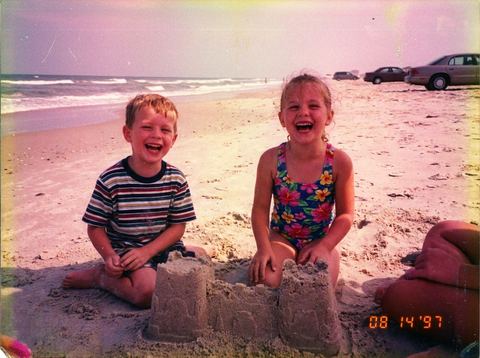
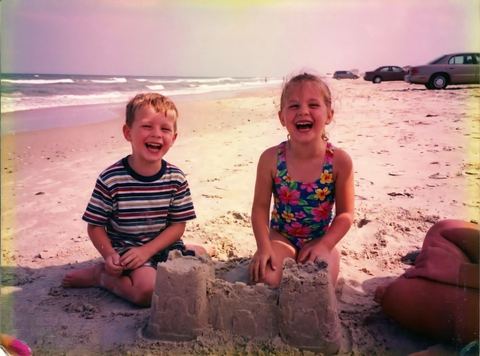
Remove Text does one job. It looks for lettering in your photo, such as captions, labels, signs, dates or stickers, removes it, and fills the space with what should plausibly be behind it. It is AI, so check the result: busy backgrounds and parts near the text can change a little. There is no prompt to write and no brush or mask to draw; the image is the only input, and the edit runs on a dedicated text removal model. It is AI, so results vary. Text over a plain wall or sky usually clears well, while words over a busy background, a face or a detailed pattern are where the fill varies most.
Examples


Why this image tool
One input, no mask
Add a single image and press Generate. The model finds the text by itself, which keeps it quick when you have a stack of screenshots or product shots to clean one after another.
Reuse what you already made
Signed in, your earlier images sit in the rail on the left. Pick one to clean without downloading and uploading it again, including images you generated or edited in AI Canvas.
The clean image feeds the next tool
Results land in the image workspace History. From there, upscale the cleaned photo, cut the subject out with Remove BG, or open Erase when a spot needs a second pass.
How it works
- 1
Choose the photo
Drop an image onto the upload card or click to pick one. Use your own photos or images you have the rights to edit.
- 2
Press Generate
Sign in if asked. The image uploads and you move to the image workspace, where the job appears in History with a loading placeholder.
- 3
Check the filled areas and download
Zoom in where the words used to be. If faint letters or a smudge remain, run it again, or switch to Erase and paint over just that spot.
Who it's for
For online sellers
Clear the price on a sticker, a handwritten note or the words on an old promo label from a product photo before it goes into a new listing.
For designers and social media managers
Take the caption or date stamp off your own photo or graphic so you can reuse it with fresh text in a post, a banner or a thumbnail.
For people tidying personal photos
Remove a timestamp burned into an old camera photo, or the writing on a name tag or sign that pulls attention in a family picture.
More to try




Frequently asked questions
What do I get back?
A new copy of your image with the text it found removed and the area filled in. It appears in your History in the image workspace, where you can download it. Your original stays as it was.
Can I choose which words to remove?
No. There is no prompt or mask on this tool, so the model decides what counts as text. To remove one word and keep the rest, use Erase and paint over just that area.
Why does the area behind the text look smudged?
The model has to guess what was hidden under the letters. Plain backgrounds are easy to rebuild; busy ones such as crowds, foliage, fabric patterns or faces are where results vary most. Running it again can give a different fill.
Can I remove a watermark?
Only use it on your own images or ones you have the rights to edit, such as a draft mark on your own design. Removing someone else's watermark from their work is not what this tool is for.
Do I need an account?
Yes, you need to be signed in before it runs. The price for one edit shows on the Generate button.
Try it on your own photo
Pay only for what you generate. The price shows on the button before you start.
Upload a photo