
AI Room Design From Your Own Photo
Transform your room with AI Canvas interior design.
Interior design tool · 135 styles on Nano Banana 2
Photograph the room you already have, choose a style, and see the same walls and windows furnished a new way.
This AI interior design tool starts from a photo of a real room rather than a blank prompt. You upload the picture, optionally tell it what kind of room it is, and optionally pick one of 135 interior design styles. Nano Banana 2 then redraws the furniture, finishes and decor while it is told to keep the room's layout and structure, so the window stays where your window is. Every style is a written design brief: Japandi asks for natural wood, a neutral palette and wabi-sabi details, Art Deco and Hollywood Regency push toward glamour, and Biophilic fills the space with greenery. It is a visual preview made by AI, so treat the result as a direction to explore, and expect two runs of the same style to differ.
Examples
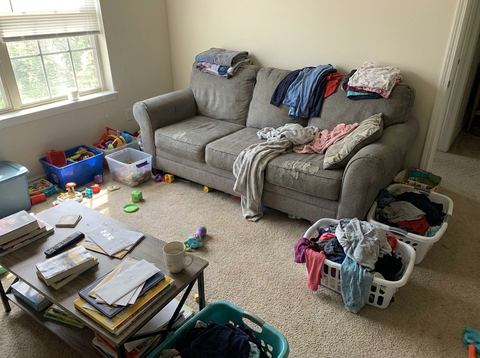
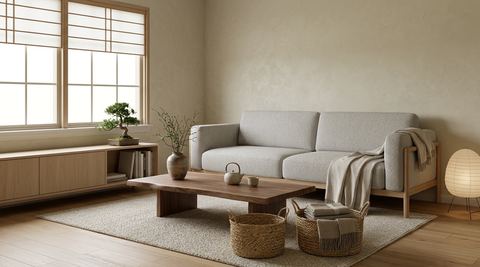
“Daylight photo of a cluttered living room with a grey sofa and beige carpet, redesigned in the Japandi style with Living Room selected”
Try it on your own photo ↑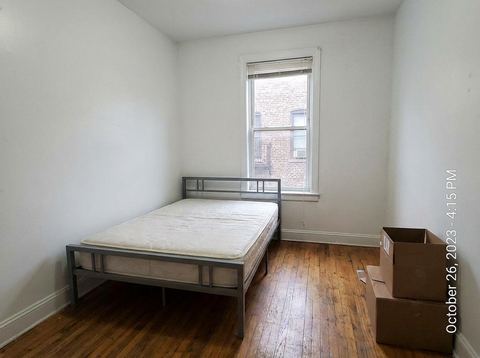
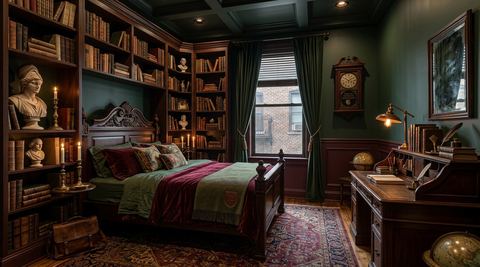
“Phone photo of a plain white bedroom with a single window, redesigned in the Dark Academia style with Bedroom selected”
Try it on your own photo ↑What it does
135 styles in ten categories
Filter by Modern, Historic, Rustic, Eclectic, Around the World, Coastal, Art-Centric, Luxury, Themed or Sustainable. The range runs from Scandinavian, Mid-Century Modern and Warm Minimalism to Moroccan Riad, Cape Cod, Dark Academia, Cottagecore and Passive House.
29 room types, from kitchen to she shed
Tag the photo as a Living Room, Bedroom, Kitchen, Bathroom, Home Office, Baby Room, Attic, Garage or Laundry Room, or go further with Cinema Room, Greenhouse, Man Cave, Coffee Shop and Restaurant. Choose Other, or skip the room entirely, and the tool still works.
Your notes on top of the style
The optional custom prompt adds what the style card cannot know: keep the oak floor, use a sage green palette, add a reading nook. Leave every option empty and the photo is still redesigned, using only the instruction to keep the room's structure.
How it works
- 1
Add a room photo
Drop in an image or pick one from the rail of your recent images. A wide, level shot taken in daylight from a corner gives the model the most of the room to work with. The output uses whichever of 16:9, 9:16 or 1:1 is closest to your photo's shape.
- 2
Choose the room and style
Tap a room type, then browse a style category and tap a card. Both are optional, and tapping a selected card again clears it.
- 3
Generate and compare
Sign in if asked and press Generate; the price shows on the button. The redesign lands in your Create Image history, so you can run the same photo through Japandi and then Industrial and compare them.
Who it's for
For homeowners and renters
Before buying a sofa or repainting, see your own living room as Warm Minimalism or Mid-Century Modern and decide which direction feels like home.
For agents and short-term hosts
Show buyers what an empty attic or a dated bedroom could become, or test the Airbnb style on a listing photo. Label AI redesigns as concepts, not the real rooms.
For designers and cafe owners
Bring a client three style directions from one site photo, or picture a Coffee Shop, Restaurant or Workshop fit-out before you brief a contractor.
More to try




Frequently asked questions
How does the AI room design tool work?
It takes your room photo and sends it to Nano Banana 2 with an instruction to redesign the interior in the style you chose while keeping the room's layout and structure. Your room type and custom notes are added to that instruction.
Which interior design styles can I pick?
There are 135 styles across ten categories, including Minimalist, Scandinavian, Japandi, Industrial, Bohemian, Farmhouse, Coastal Grandmother, Art Deco, Quiet Luxury, Dark Academia, Biophilic and Organic Modern.
Will it keep my walls, windows and floor plan?
That is what it is asked to do, and it usually keeps the overall shape of the room. It is generative AI, though, so details like a door frame or ceiling height can shift between runs.
Do I have to choose a room type or style?
No. Only the photo is required. Without a style the model picks its own direction, so choosing one gives you more control.
Can it design outdoor spaces?
This tool is for interiors. For a front yard, patio, balcony or pool area, use Exterior Design, which has its own outdoor spaces and styles.
Can I use the result to order furniture or renovate?
Use it as inspiration. The furniture and materials are generated, not real products, and sizes are not measured, so check plans with a professional before you build.
Try it on your own photo
The tool is at the top of this page. The price shows on the button before you start.
Back to the tool