Image tool · one product photo, no prompt
AI Product Photography From One Photo
Upload a plain product shot, press Generate, and get it back in a lifestyle scene that looks like an ad.
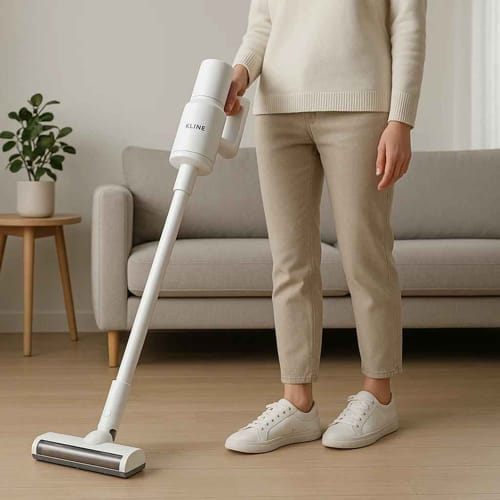
Product Staging turns a plain product photo into a lifestyle shot. You upload one image of your product, ideally on a clean background, press Generate, and Nano Banana 2 places it in a real-life scene where it is being used: a mug in someone's hand at a kitchen counter, a running shoe mid-stride on a track, a serum bottle at a bathroom sink. The instruction is fixed and written for a clean ad look, so there is nothing to type and no style to pick, and the model chooses the setting. Be ready for what that means. The scene is invented, it often includes AI-generated people, and it can add things you did not ask for, such as a tagline, a made-up brand name or extra props. In our examples, three of the four results came back with ad copy written into the picture. Check that your product's shape, color and label came through, and treat the result as a concept or social image rather than a record of the real product.
Examples
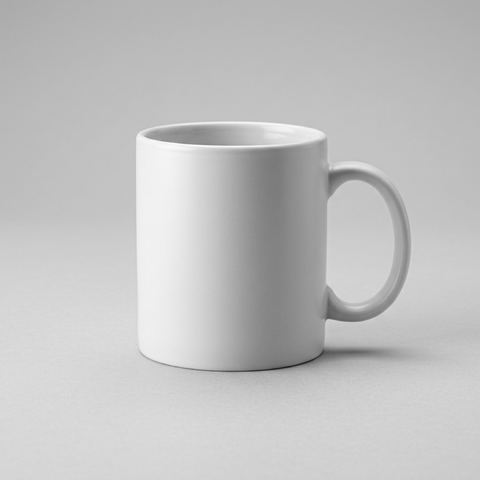
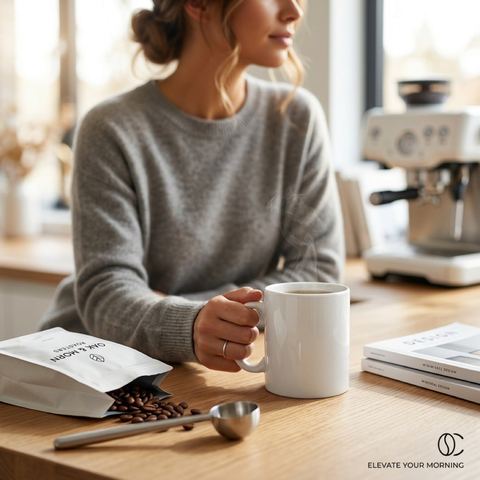
“Staged from a plain white mug packshot”
Try it on your own photo ↑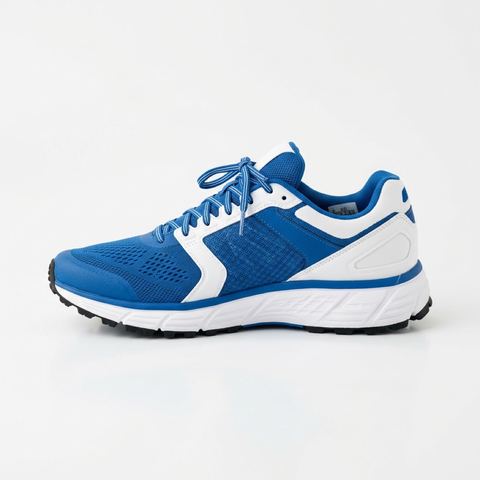
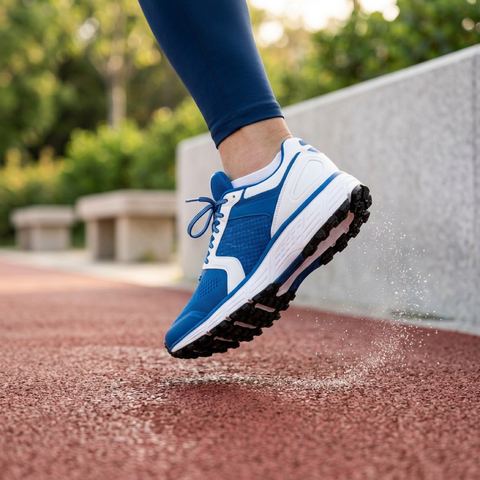
“Staged from a side view of a running shoe on white”
Try it on your own photo ↑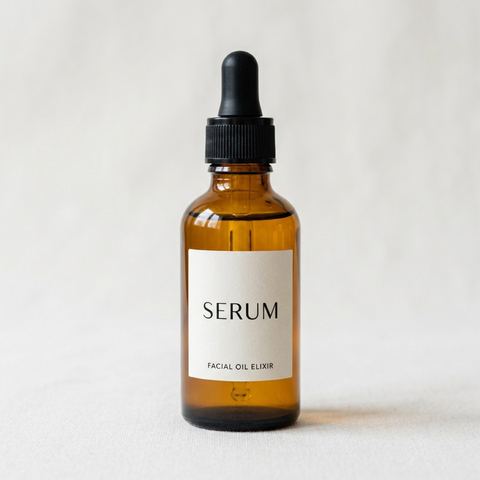
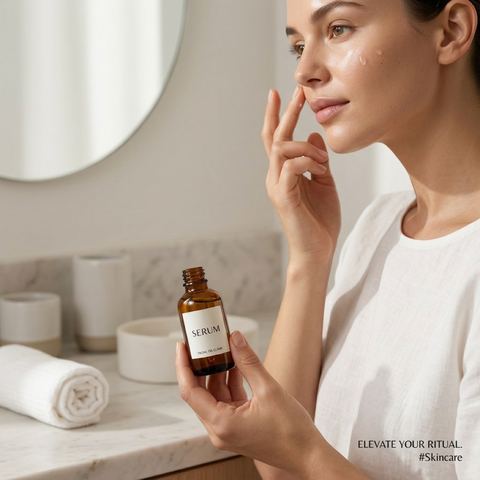
“Staged from an amber dropper bottle packshot”
Try it on your own photo ↑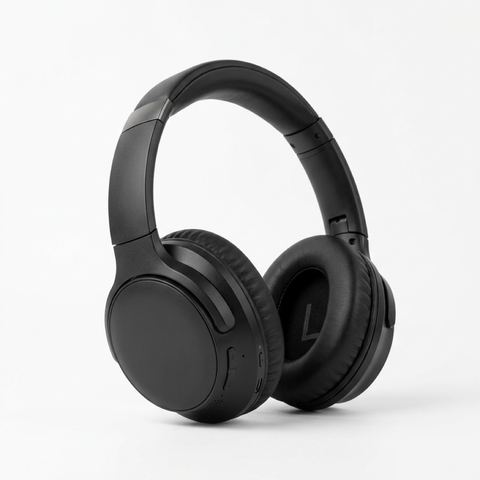
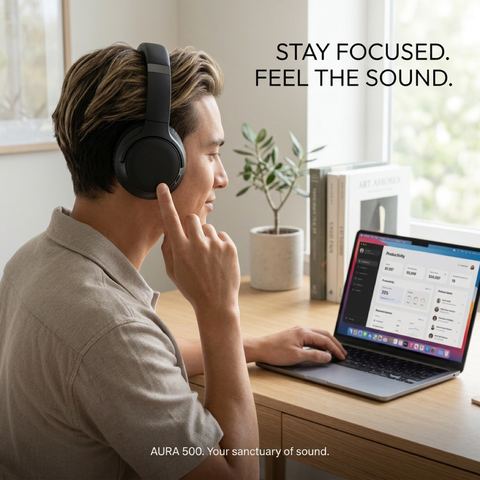
“Staged from a headphones packshot, second run”
Try it on your own photo ↑Why this image tool
No prompt, one button
Every run sends your photo to Nano Banana 2 with the same built-in instruction: showcase the uploaded product in a real life product usage scenario with a clean ad vibe. You only supply the product photo.
Your product in a new setting
The edit model works from your photo, so the product itself is carried into the scene. In our examples the plain white mug stayed plain, the blue and white shoe kept its colorway, and the SERUM label stayed readable. Our square packshots came back square.
Run it again for a different scene
The model picks the setting each time, so two runs give two different scenes. We ran the headphones twice: the first result had a placeholder line reading [Brand Name] in its ad copy, and the second, shown here, did not. One run is 20 credits.
How it works
- 1
Start from a clean product photo
One product, a plain background, even light and the whole item in frame works best. Turn the label or logo toward the camera if you want it to show in the scene.
- 2
Upload it
Drop the image onto the Product Photo card or click to choose one. Signed in, you can also pick an earlier image from the rail on the left.
- 3
Generate and review
Press Generate; the price shows on the button. Sign in if asked. You move to the image workspace, where the staged photo appears in History. Zoom in on the label and edges before you use it.
Who it's for
For small online shops
Add a lifestyle image next to your plain packshot on a product page. Where a marketplace requires a white background main image, keep the packshot as the main image and use the staged one further down.
For social posts and ad tests
Get a scroll-stopping product scene for an Instagram post or a quick ad test before you pay for a photo shoot, and see which kind of setting your audience reacts to.
For makers and new products
Show a prototype or a first batch in use on a pitch deck, a crowdfunding page or a launch email, and say clearly that the scene was made with AI.
More to try



Frequently asked questions
How does this AI product photography tool work?
It sends your product photo to Nano Banana 2, an image editing model, with a fixed instruction to show the product being used in a real-life scene with a clean ad look. The model decides the setting, the props and whether people appear.
Can I choose the scene or write my own prompt?
Not in Product Staging. To describe the setting yourself, use Change Background and write the scene you want, or browse the Image Ads templates for set ad styles.
Why did text or a brand name appear in my image?
The instruction asks for an ad look, and the model sometimes adds a tagline or invents a brand name to match. Run it again for a different result, or clean the text off with Remove Text.
Will my product look exactly the same?
The overall shape and colors usually carry over, as in our examples, but the scene is generated, so small print, logos and fine details can be redrawn. Compare closely with your original, especially before using the image in a listing.
What kind of photo works best?
A sharp packshot of a single product on a plain background. Busy backgrounds, several products in one shot or a product cut off at the edge give the model less to work with.
Do I need an account?
Yes, you need to be signed in before a run starts. One staged image costs 20 credits, and the price shows on the Generate button before you press it.
Try it on your own photo
Pay only for what you generate. The price shows on the button before you start.
Upload a photo