
AI Poster Generator


Poster Maker
Pick a look, add a headline, get four posters.
 Logo
 Poster
 Instagram Post
 Instagram Story
 T-Shirt
 Branding
 Card & Invite
 Flyer
 Infographic
 Design Mockup
 Sticker
 Icon
 Wallpaper
 Pattern
 Book Cover
 Album Cover
 Meme
 Emoji
 Tattoo
 Signature
 Slide
 YouTube Thumbnail
No poster templates available
Design tool · Posters
Write the headline, the details and the picture you have in mind, choose one of eighteen poster styles, and compare poster designs side by side.
This tool designs a poster from a short brief. You write the headline, any date or details, and the image you have in mind, and the tool adds a poster brief that asks for a flat design with no mockup, so you get the artwork rather than a photo of a framed poster. Pick one of eighteen styles, from Event/Concert and Tourism to Art Deco and Grunge, add a color palette, and ask for several posters in one run. The tool starts on GPT Image 2 at 2:3, the tall shape of most printed posters. The model usually writes short headlines correctly, but AI lettering can still slip, so read every word, including dates and times, before you print or share it.
Examples
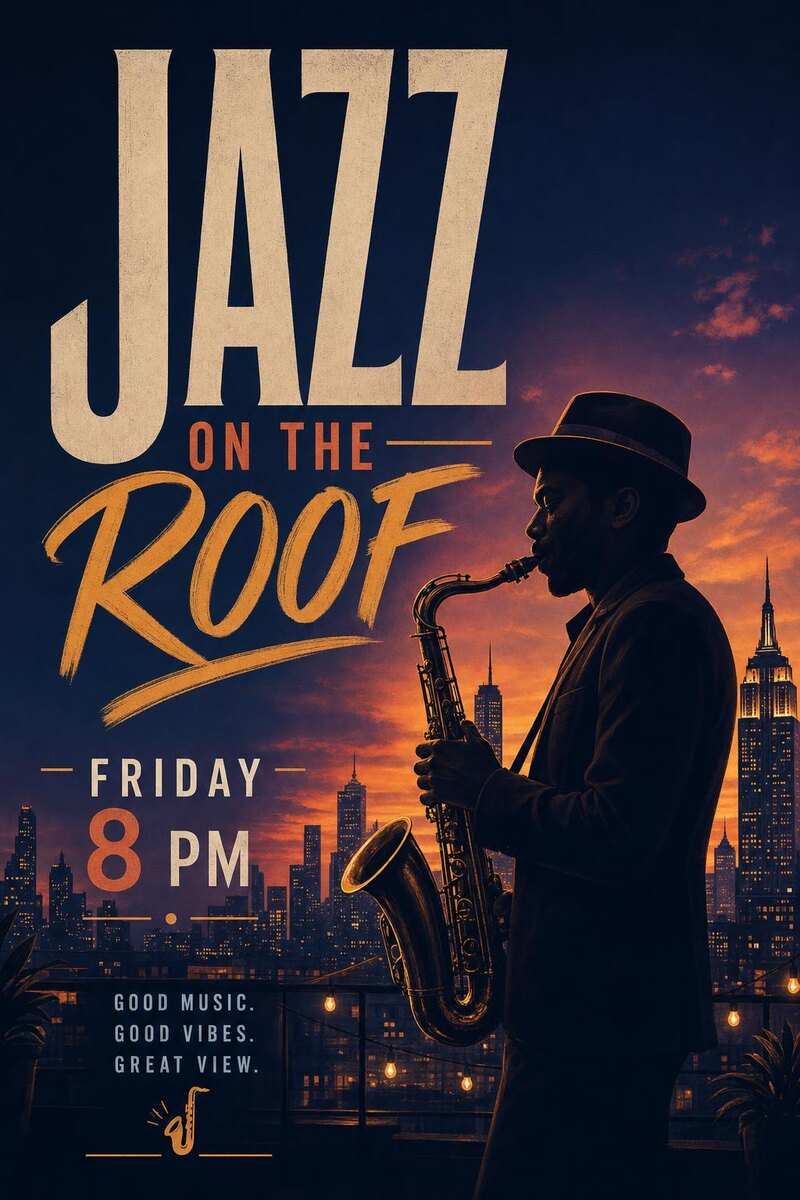
“a poster for 'Jazz on the Roof', Friday 8 PM, a saxophone player against a city skyline at dusk”
Make one like this ↑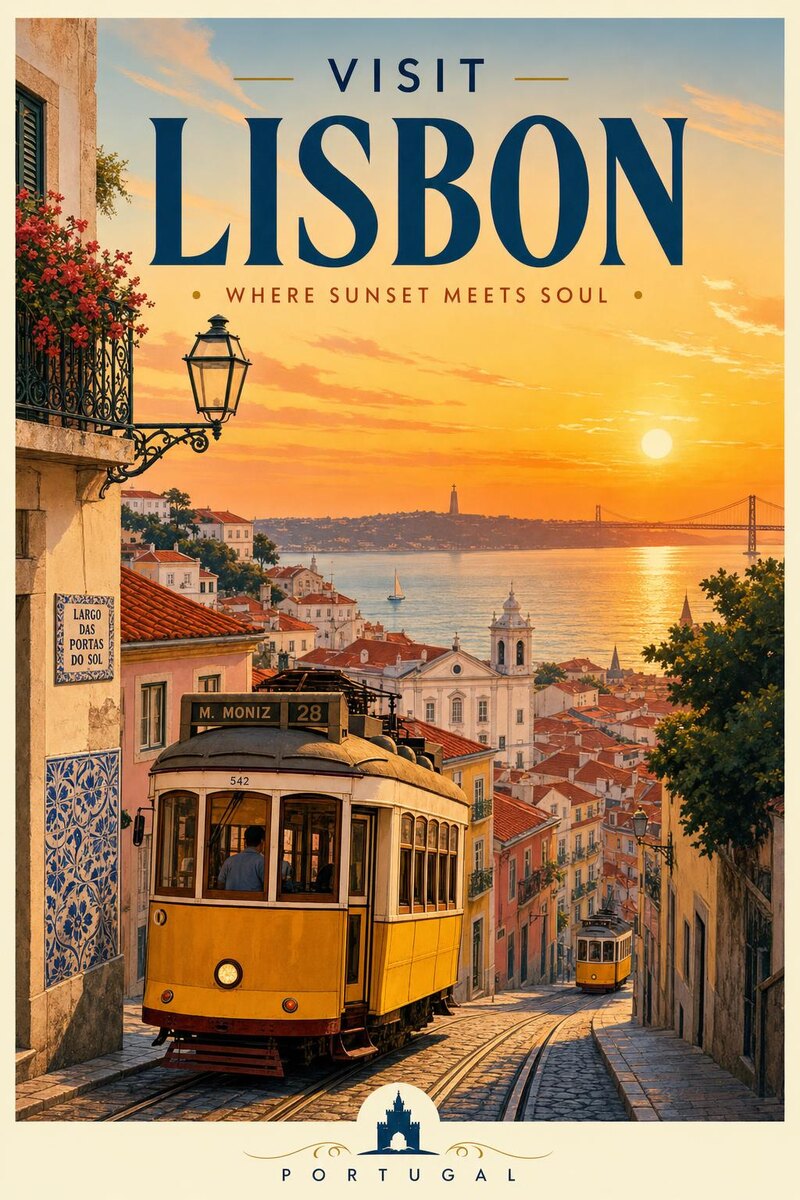
“a travel poster for 'Visit Lisbon', yellow trams, red rooftops and the river at sunset”
Make one like this ↑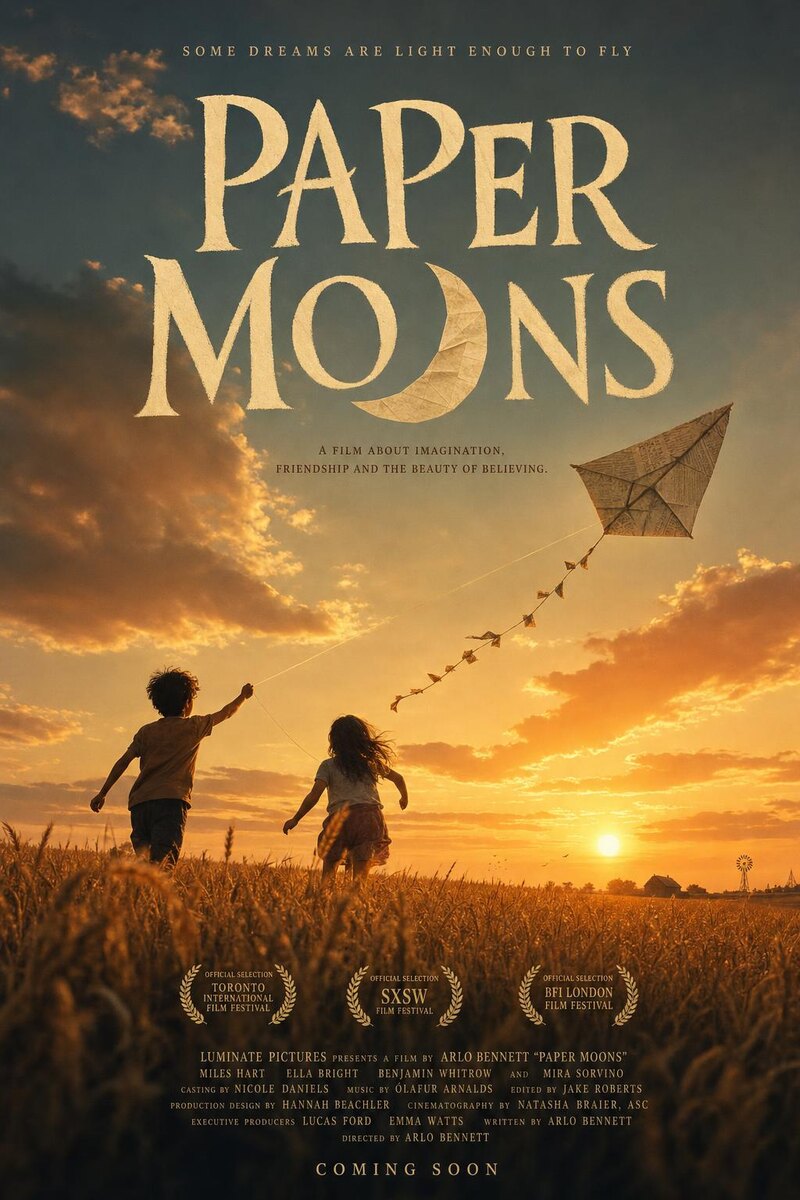
“a movie poster for 'Paper Moons', two kids flying a paper kite over a wheat field at sunset”
Make one like this ↑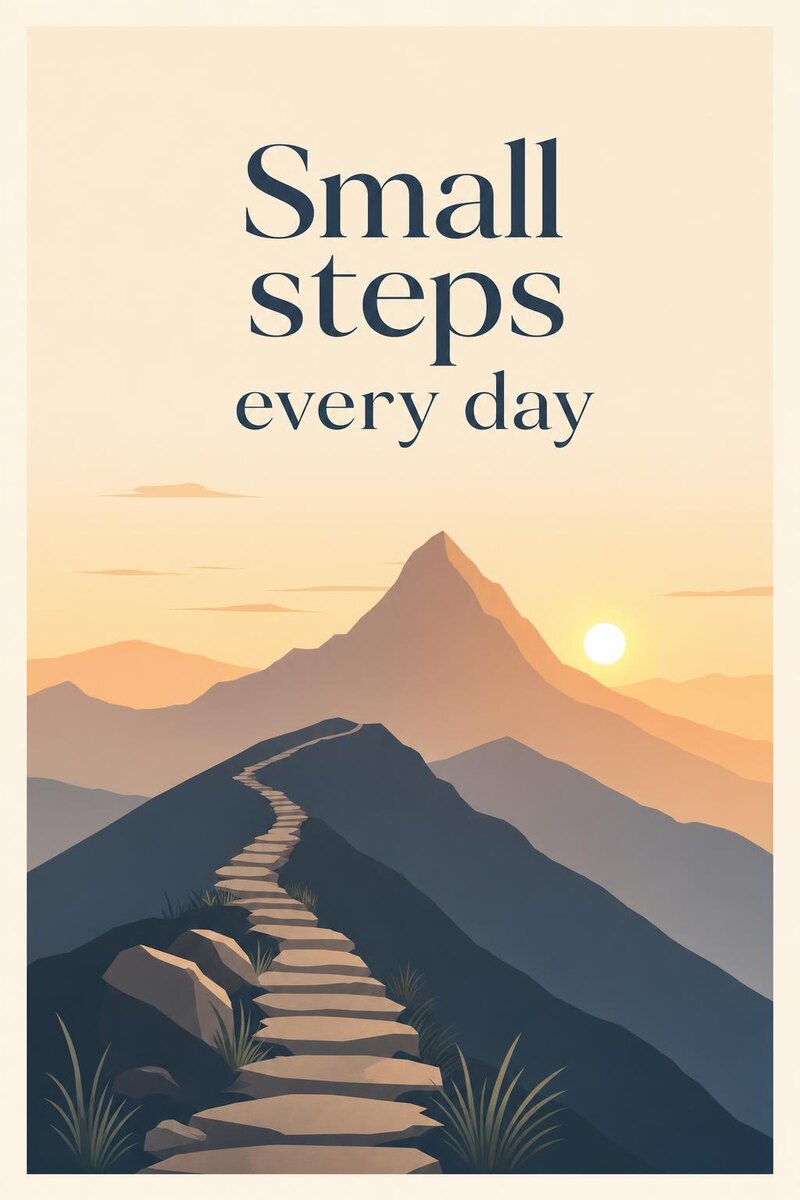
“a poster with the words 'Small steps every day', a mountain path at sunrise”
Make one like this ↑What it does
Eighteen poster styles
Choose Minimalist, Typography, Movie Style, Propaganda, Tourism, Event/Concert, Commercial, Retro, Photographic, Illustration, Geometric, Pop Culture, Motivational, Art Deco, Grunge, Abstract, Promo or Wall Art. The style is added to your prompt, so one gig can come back as a clean Typography layout or a loud Retro one.
Tall, square or wide
Posters come in 2:3, 1:1 and 3:2. GPT Image 2, where the tool starts, draws all three, and so do Nano Banana Pro, Nano Banana 2, Flux 2 Pro and Grok Imagine. Most other models in the picker draw the square version only. Use 3:2 for a landscape print or a wide event graphic.
Fix the lettering after
Open a poster from your history and use the Text menu: Change Text corrects a wrong word or date, Add Text puts on a line you forgot, such as a ticket link, and Remove Text clears the lettering so you can set the type yourself. Place in Mockup shows the poster in a scene before you print it.
How it works
- 1
Write the brief
Put the headline in quotes and add only the details people need: 'Jazz on the Roof', Friday 8 PM. Then describe one image, such as a saxophone player against a city skyline at dusk. Fewer words means fewer chances for a typo.
- 2
Pick a style, shape and count
Choose a style such as Event/Concert or Tourism, keep 2:3 for a standard poster or switch to 1:1 or 3:2, add a palette like Golden Hour or Neon Lights, and set how many posters to make, up to four on GPT Image 2.
- 3
Check, refine and download
Read the headline, date and time on every version. Fix a wrong word with Change Text, use Upscale before you print large, and download the one you choose. Reframe turns it into another shape for a social post.
Who it's for
For events and venues
Bars, clubs and bands that need a new poster for a gig, a quiz night or a festival every week, and want to try a few looks before printing.
For shops and studios
Cafes, gyms and stores making a Promo or Commercial poster for a sale or an opening, for the window and for sharing online.
For wall art and gifts
Make a Tourism print of your hometown, a Movie Style poster for a family film night or a Motivational line for a home office, then upscale it and print it at a local print shop.
More to try




Frequently asked questions
Can I print the poster?
Yes. Download the image and send it to a print shop or an online print service. The 2:3 shape matches common poster sizes such as 12 by 18 and 24 by 36 inches. For a large print, use Upscale first and check the printer's file requirements.
Will the text on the poster be spelled correctly?
Usually, for short headlines on models that are good at lettering, such as GPT Image 2 and Nano Banana Pro. Small print and dates are where mistakes slip in, so read every line and fix errors with Change Text or by generating again.
Can I use my own photo or logo on the poster?
Yes. Attach a photo of your band, product or venue, or your logo, and say how to use it. GPT Image 2 and most other models accept a reference image. Recraft V4, Recraft V4 Pro, Stable Diffusion 3.5 and MiniMax Image-01 work from text only, so the attach button hides when one of them is selected. The result is a new drawing, so check that faces and logos look right.
Which style should I pick?
Event/Concert or Promo for dates and offers, Tourism or Retro for travel prints, Movie Style for a film look with a title block, and Minimalist, Typography or Wall Art for prints to hang.
Do I need an account?
You can open the tool and write your brief without one. Generating asks you to sign in and uses credits, and the price for the model and number of posters shows on the Generate button. The Explore tab shows example posters with their prompts.
Make your own
The generator is at the top of this page. The price shows on the Generate button before you start.
Back to the tool