
AI Emoji Generator
 Logo
 Poster
 Instagram Post
 Instagram Story
 T-Shirt
 Branding
 Card & Invite
 Flyer
 Infographic
 Design Mockup
 Sticker
 Icon
 Wallpaper
 Pattern
 Book Cover
 Album Cover
 Meme
 Emoji
 Tattoo
 Signature
 Slide
 YouTube Thumbnail
No emoji templates available
Design tool · Emoji
Describe the reaction you wish existed, choose one of four emoji styles, and get square custom emoji to download and add to your chats.
This tool turns a short description into a custom emoji. You describe the face, object or reaction, the tool adds an expressive emoji brief to your prompt, and the model draws one square 1:1 emoji, usually centered on a plain white background. Pick one of four styles: Classic Glossy for the familiar shiny yellow look, Kawaii for soft and cute, Modern 3D for rounded depth, or Early Internet for chunky pixels and bold outlines. The tool starts on GPT Image 2 and makes up to four emoji per run. Results are images, not a font or a keyboard emoji, and they come on a background, so run Remove BG when you need a cutout for Slack or Discord.
Examples




What it does
Four emoji styles
Classic Glossy gives the shiny yellow face you know from phone keyboards, Kawaii makes it soft and cute, Modern 3D adds rounded depth and lighting, and Early Internet draws it in chunky pixels like old chat apps. The style goes into your prompt, so one reaction can be tried four ways.
Square on every model
Emoji are 1:1 only and every model in the picker draws that shape, so you can switch from GPT Image 2 to Nano Banana Pro or Recraft V4 and compare the same idea. Add a palette like Pastel or Neon Lights for set colors.
Emoji of your pet or face
Attach a photo and ask for it as an emoji, such as this dog as a Kawaii emoji. Recraft V4, Recraft V4 Pro, Stable Diffusion 3.5 and MiniMax Image-01 work from text only, so the attach button hides when one of them is selected.
How it works
- 1
Describe the reaction
Name one face, object or gesture and the feeling: a face sweating while typing on a tiny laptop. Emoji are shown at tiny sizes, so one clear idea reads better than a scene or a word.
- 2
Pick a style and count
Choose Classic Glossy, Kawaii, Modern 3D or Early Internet, add a palette if you want custom colors, and set how many emoji to make in one run.
- 3
Cut out and upload
Open your favorite from your history, run Remove BG so the emoji has no background, then download it and add it as a custom emoji in your Slack workspace or Discord server.
Who it's for
For Slack and team chats
A custom reaction for a launch, a shipped feature, an inside joke or your team mascot, added to your workspace so everyone can use it.
For Discord and online communities
Server emoji in your community's colors and style, like a Retro thumbs up in Early Internet or a Kawaii version of your server mascot.
For brands and creators
A branded emoji of your product, your logo character or yourself, for social posts, newsletters or a sticker pack for your followers.
More to try
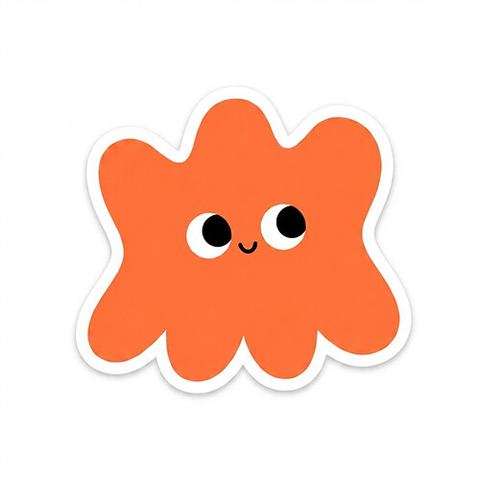

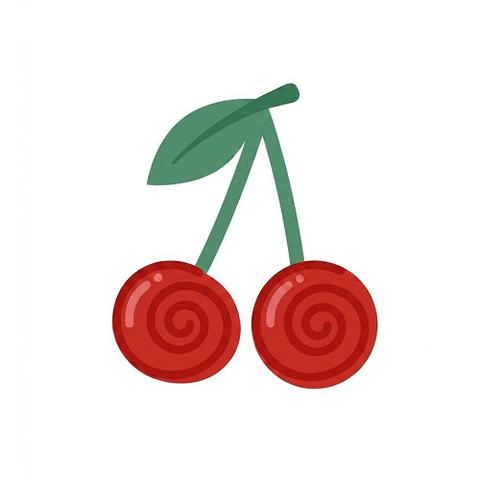
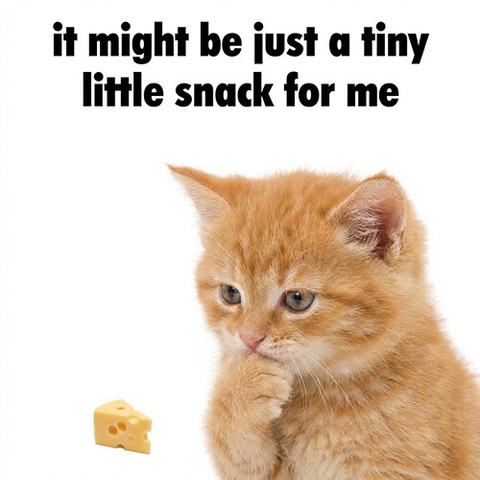
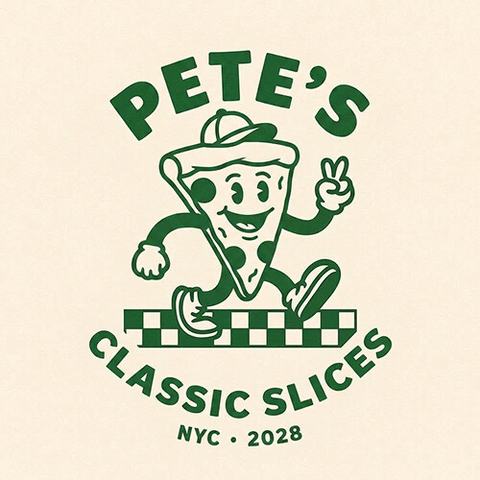
Frequently asked questions
Can I add it to my iPhone or Android keyboard?
Not as a standard emoji. Phone keyboards show the emoji built into the system, so a custom one works as an image: send it as a picture or a sticker, or add it as a custom emoji in apps that allow it, such as Slack and Discord.
Does it have a transparent background?
No. Emoji come on a background, usually plain white. Use Remove BG on the result before you upload it, so it sits cleanly on dark mode.
What size do Slack and Discord need?
Both want a small square image under a file size limit, and the download is larger than that. Shrink it in an image editor if the app rejects it, and check each app's help page for the current limits.
Can I make animated emoji?
This tool makes still images. You can send an emoji to Video from the result to animate it, but chat apps usually expect animated emoji as GIFs, so you would need to convert the video yourself.
Do I need an account?
You can open the tool and write your idea without one. Generating asks you to sign in and uses credits, and the price for the model and number of emoji shows on the Generate button. The Explore tab shows example emoji with their prompts.
Make your own
The generator is at the top of this page. The price shows on the Generate button before you start.
Back to the tool