
AI Wallpaper Generator
 Logo
 Poster
 Instagram Post
 Instagram Story
 T-Shirt
 Branding
 Card & Invite
 Flyer
 Infographic
 Design Mockup
 Sticker
 Icon
 Wallpaper
 Pattern
 Book Cover
 Album Cover
 Meme
 Emoji
 Tattoo
 Signature
 Slide
 YouTube Thumbnail
No wallpaper templates available
Design tool · Wallpapers
Describe the scene you want behind your apps, choose a wallpaper style, and get tall phone or wide desktop wallpapers to download.
This tool turns a short description into a wallpaper. You write the scene, the tool adds a high resolution wallpaper brief to your prompt, and the model you picked draws it in the shape of your screen: 9:16 for a phone, 16:9 for a desktop or laptop, or 1:1 for a tablet or a profile background. Pick one of ten styles, add a color palette if you want the wallpaper to match a theme, and make several versions in one run. The tool makes the image only. Download it and set it as your wallpaper in your phone or computer settings.
Examples
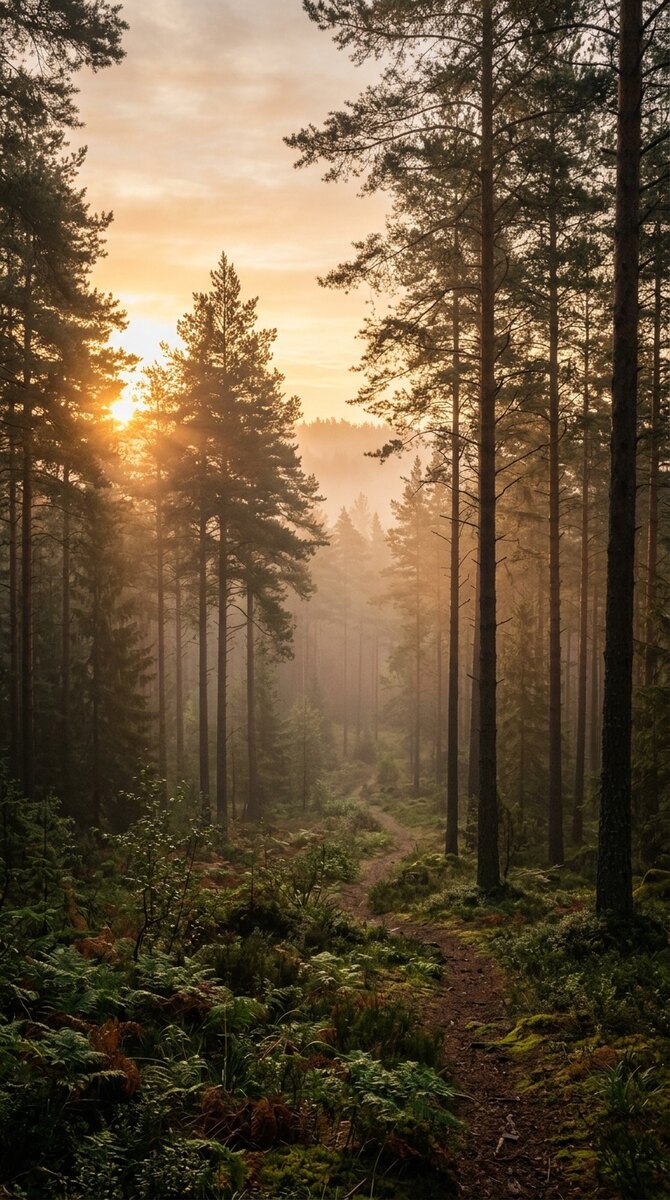
“a misty pine forest at sunrise with soft golden light”
Make one like this ↑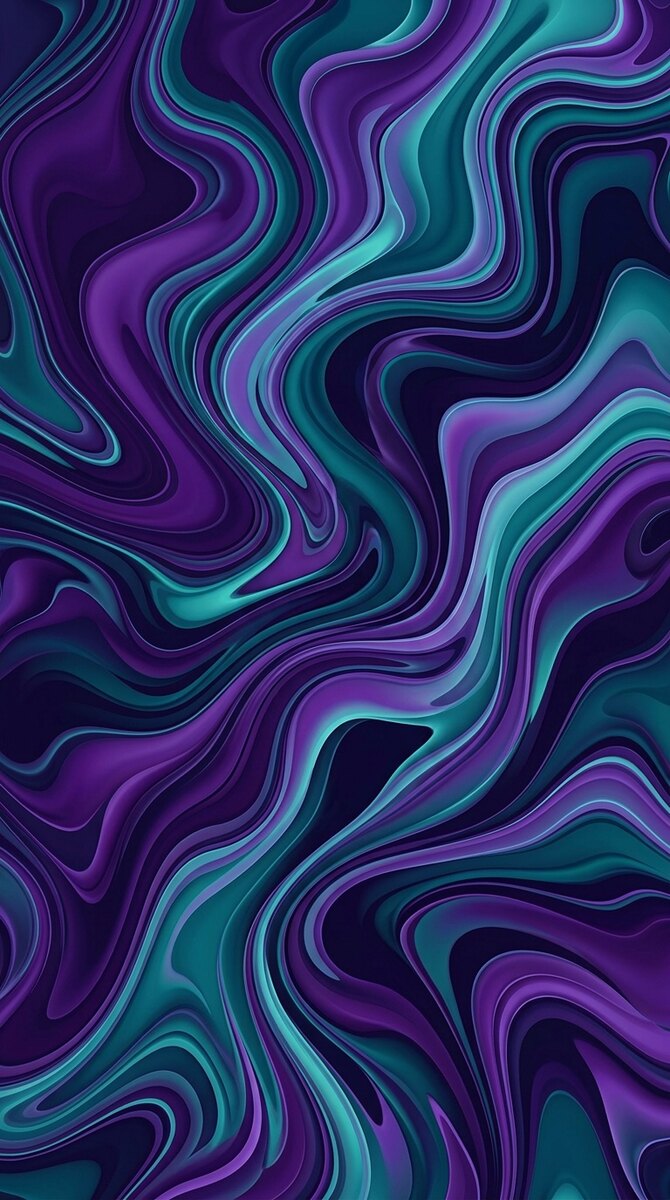
“flowing liquid shapes in deep purple and teal”
Make one like this ↑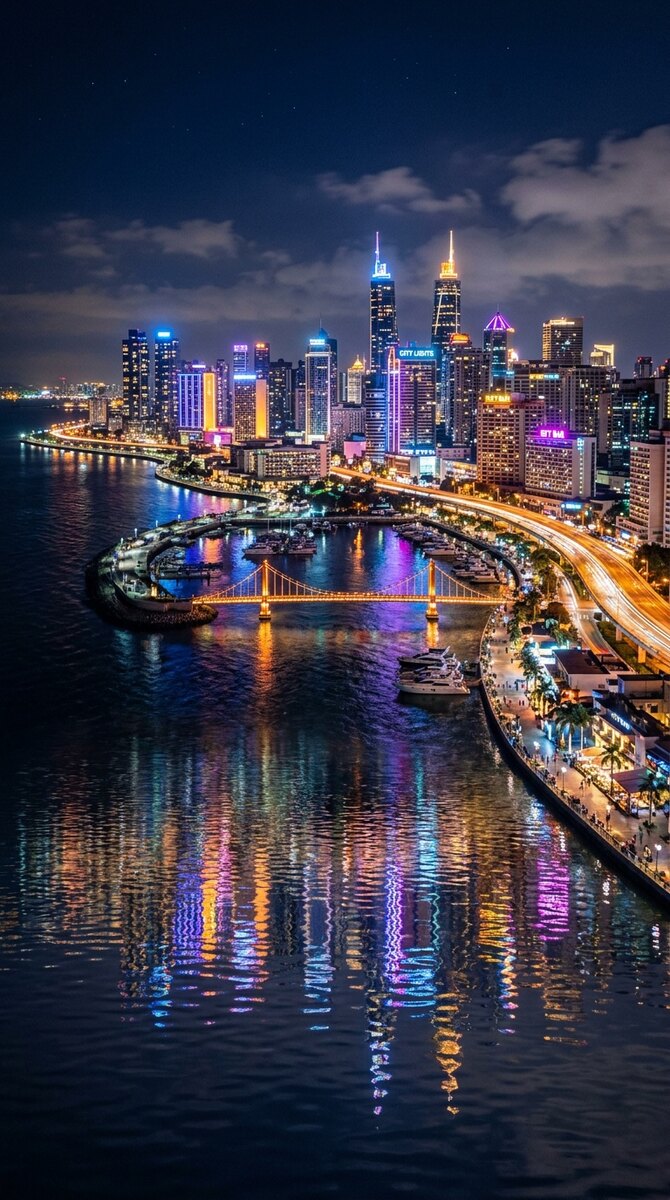
“a coastal city skyline at night with neon reflections on the water”
Make one like this ↑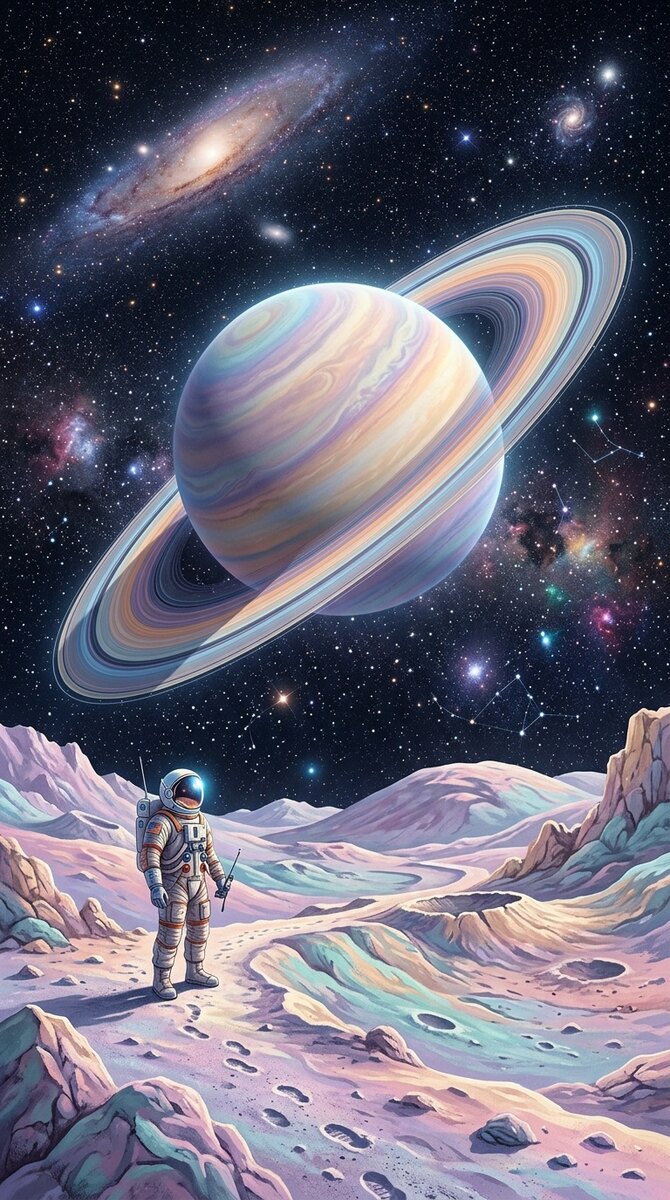
“a lone astronaut on a pastel moon under a huge ringed planet”
Make one like this ↑What it does
Ten wallpaper styles
Choose Nature, Abstract, Minimalist, Geometric, Aesthetic, Dark, Colorful, Space, Cityscape or Gradient. The style is added to your prompt, so one idea, like a mountain lake, can come back as a quiet Minimalist scene or a deep Dark one that keeps your home screen icons easy to read.
Phone, desktop or square
Wallpapers come in 9:16 for phones, 16:9 for monitors and laptops, and 1:1. The tool starts on Nano Banana 2 at 9:16, ready for a phone. Nano Banana Pro, Flux 2 Pro, Grok Imagine and most other models in the picker offer all three shapes; GPT Image 2 draws the square one only. The examples on this page were made with Nano Banana 2 at 9:16.
Palettes and reference photos
Add a palette such as Midnight Blue, Pastel or Neon Lights and the colors go into the prompt with the style. You can also attach a photo you took or an image you like as a starting point. Recraft V4, Recraft V4 Pro, Stable Diffusion 3.5 and MiniMax Image-01 work from text only, so the attach button hides when they are selected.
How it works
- 1
Describe the scene
Say what fills the screen and the light: a misty pine forest at sunrise with soft golden light. For a phone, ask for open sky or calm space near the top so the clock and widgets stay readable.
- 2
Pick a style, shape and model
Choose a style like Nature or Space and the shape of your screen: 9:16 is selected for you, switch to 16:9 for a desktop. Keep Nano Banana 2 or pick another model, add a palette if you like, and set how many versions to make, up to five in one run on some models.
- 3
Download and set it
Open your favorite from your history. Upscale it for a large or high resolution monitor, or use Reframe to turn a phone wallpaper into a 16:9 desktop one. Download it, then set it as your lock screen or desktop background.
Who it's for
For phone home and lock screens
When the stock wallpapers feel the same as everyone else's, make a lock screen from your own idea, like your favorite city at night or a planet in your favorite colors.
For desktop and laptop setups
Match a 16:9 wallpaper to your desk, your theme or the season, and make a calm Dark or Minimalist one that keeps icons and windows easy to see.
For matching sets
Run the same prompt and palette in 9:16 and 16:9 to get a phone and a desktop wallpaper that look like a pair, or reuse a result's settings to make a new one in the same style.
More to try


Frequently asked questions
Will the wallpaper fit my phone exactly?
The 9:16 shape is close to a phone screen, but many recent phones are a little taller, so your phone may crop the sides or zoom in slightly. Keep the main subject near the center and preview it in your settings before you confirm.
How do I get a sharp wallpaper for a 4K monitor?
Pick 16:9, then open the result from your history and use Upscale before you download it. Simple scenes such as gradients and abstract shapes hold up best when they are stretched across a large screen.
Can I make a live or moving wallpaper?
This tool makes still images. You can send a wallpaper to Video from the result to animate it, then check whether your phone accepts a video as a wallpaper.
Which model should I use?
Start with Nano Banana 2, where the tool starts: it makes tall and wide wallpapers. Try Nano Banana Pro or Flux 2 Pro for a different look, and keep in mind that GPT Image 2 only draws square wallpapers here. The price for each model shows on the Generate button.
Do I need an account?
You can open the tool and write your idea without one. Generating asks you to sign in and uses credits, and the price for the model and number of wallpapers shows on the Generate button. The Explore tab shows example wallpapers with their prompts.
Make your own
The generator is at the top of this page. The price shows on the Generate button before you start.
Back to the tool