
AI Icon Generator
 Logo
 Poster
 Instagram Post
 Instagram Story
 T-Shirt
 Branding
 Card & Invite
 Flyer
 Infographic
 Design Mockup
 Sticker
 Icon
 Wallpaper
 Pattern
 Book Cover
 Album Cover
 Meme
 Emoji
 Tattoo
 Signature
 Slide
 YouTube Thumbnail
No icon templates available
Design tool · Icons
Describe one object and what it is for, choose one of eight icon styles, and get square icons for apps, games and websites.
This tool turns a short description into a square icon. You describe the object and what it is for, such as an app icon for a weather app with a sun behind a cloud, the tool adds an icon brief that asks for clean lines, and the model draws one 1:1 icon. Pick one of eight styles, from Outline and Solid to 3D Rendered and Retro Pixel Art, add a color palette, and make several icons in one run. The tool starts on GPT Image 2. Each result is a raster image, like a PNG, on a background; it is not an SVG or vector file. Upscale it when you need a larger size and use Remove BG when you need a transparent cutout.
Examples
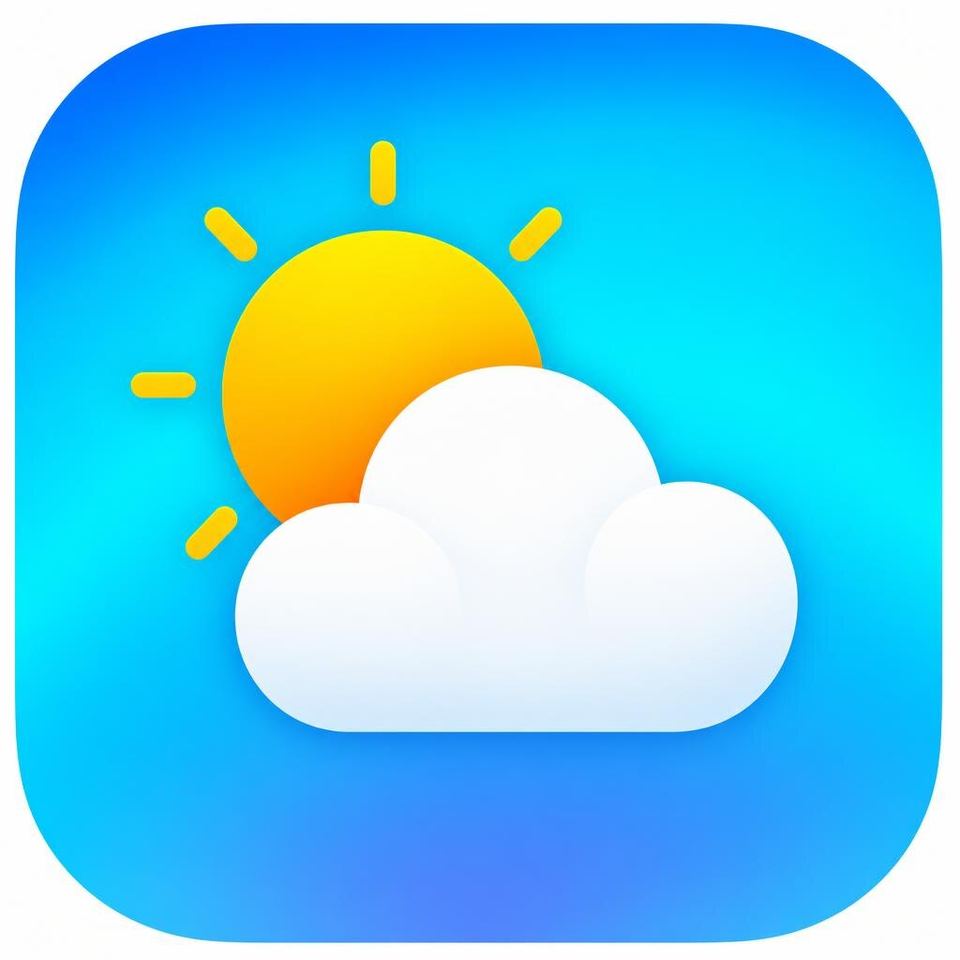
“an app icon for a weather app, a sun behind a cloud”
Make one like this ↑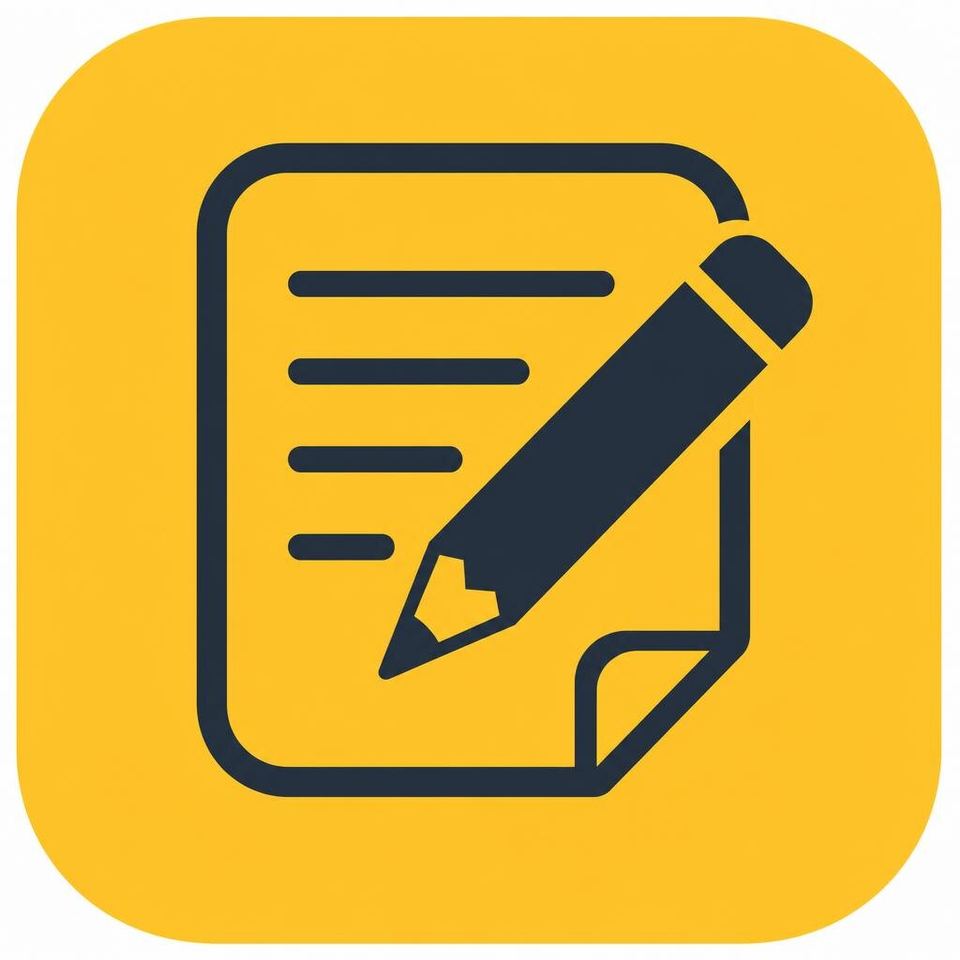
“an app icon for a notes app, a pencil over paper”
Make one like this ↑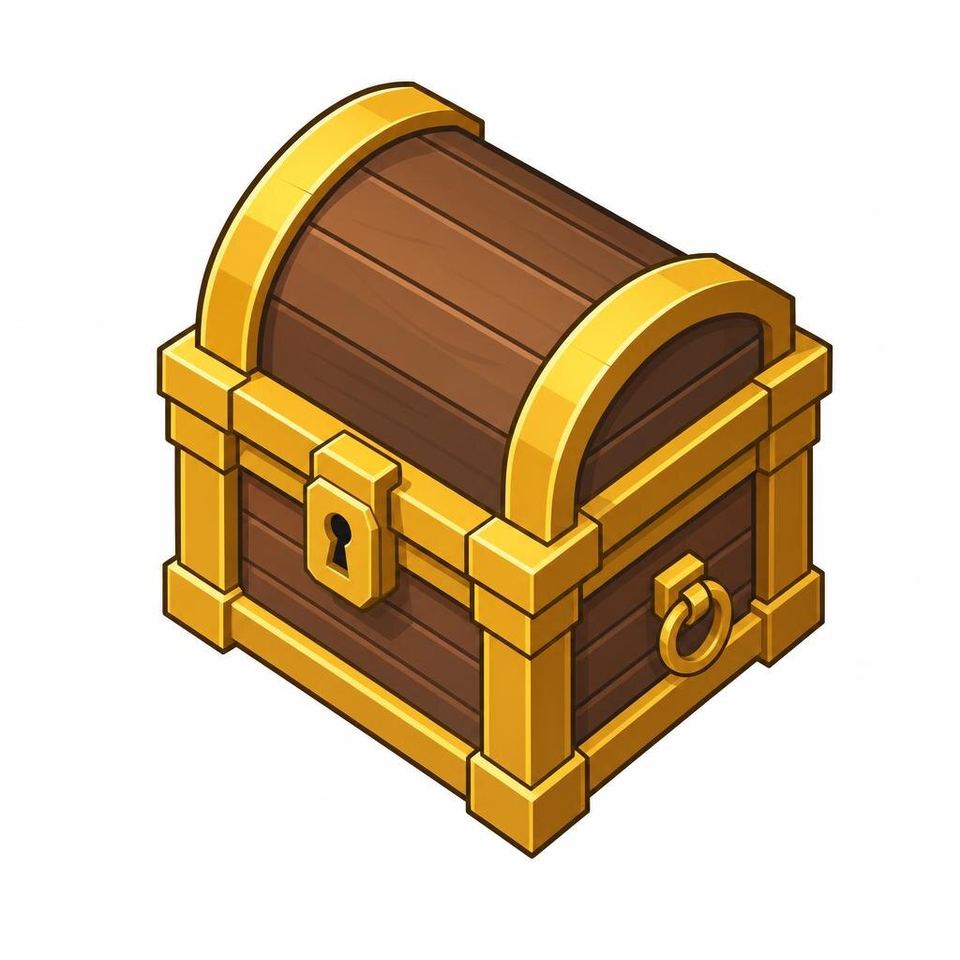
“an icon of a treasure chest for a game”
Make one like this ↑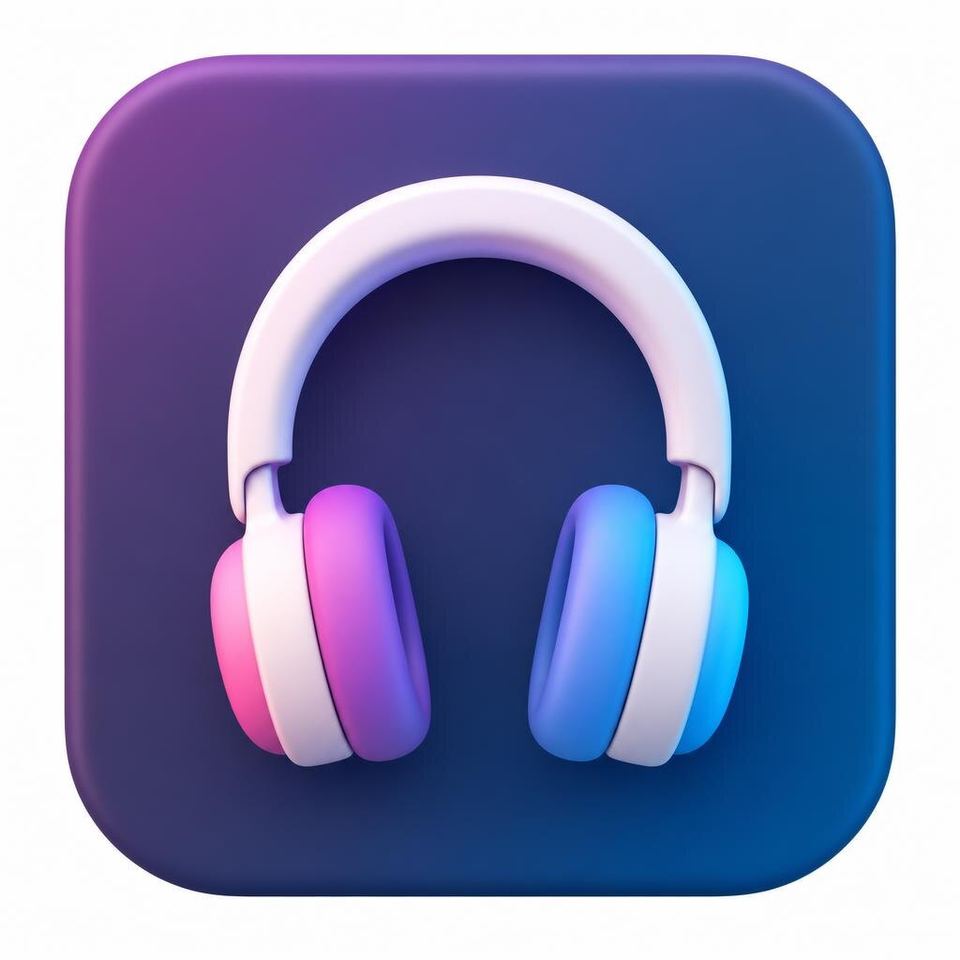
“an app icon for a music app, a headphone”
Make one like this ↑What it does
Eight icon styles
Choose 3D Rendered, Duotone, Isometric, Outline, Retro Pixel Art, Skeuomorphic, Solid or Vibrant Gradient. The style goes into your prompt, so one idea, a treasure chest, can come back as a flat Outline glyph for a toolbar or a shiny 3D Rendered icon for a game.
Square on every model
Icons are 1:1 only and every model in the picker makes that shape, so you can compare GPT Image 2 with Nano Banana Pro, Recraft V4 or Flux 2 Pro on the same prompt. Make up to five icons in one run on Seedream 5 Lite, four on most models, one on Flux 2 Pro.
Matching sets
Reuse an icon's settings from your history and change only the object, so a notes, calendar and mail icon share one style and palette. You can also attach an icon you already have as a reference on models that accept images.
How it works
- 1
Describe one object
Name what the icon is for and one simple shape: an app icon for a music app, a headphone. One object still reads at small sizes; detailed scenes and words do not.
- 2
Pick a style and count
Choose a style such as Vibrant Gradient for an app icon or Outline for a website, add a palette like Cool Tones or your brand colors, and set how many icons to make.
- 3
Clean up and download
Open your favorite from your history. Use Remove BG for a transparent cutout and Upscale for a larger size, then download it and check it at the size it will be shown, such as a home screen or a browser tab.
Who it's for
For app developers
Indie and student developers who need an app icon for a prototype, a beta or a first release, and want to try several looks before settling on one.
For websites and slides
A set of feature icons for a landing page, a starting point for a favicon, or icons for slides and documents in your own colors.
For games and communities
Item icons, achievement badges and server icons in Retro Pixel Art, Isometric or 3D Rendered styles, made as a set from one prompt pattern.
More to try


Frequently asked questions
Can I get an SVG or vector icon?
No. Results are raster images, like a PNG, not SVG files. For an icon that stays sharp at every size in an app or a website, have the image traced into a vector in your design software, or use Upscale for a larger raster version.
Can I use it as an iPhone or Android app icon?
Yes, as artwork for one. App stores ask for a square image and apply their own rounded corners, so ask for artwork that fills the whole square rather than a rounded tile, and export the sizes your platform lists. Upscale first if you need a large source file.
How do I get a transparent background?
Icons come on a background. Open the result from your history and use Remove BG, then download the cutout and check the edges on a light and a dark background.
Can I make a set of icons that match?
Yes. Keep the same style and palette and change only the object in your prompt, or reuse a finished icon's settings from your history. Attaching your first icon as a reference also helps the next ones match.
Do I need an account?
You can open the tool and write your idea without one. Generating asks you to sign in and uses credits, and the price for the model and number of icons shows on the Generate button. The Explore tab shows example icons with their prompts.
Make your own
The generator is at the top of this page. The price shows on the Generate button before you start.
Back to the tool