
AI Social Media Post Generator
 Logo
 Poster
 Instagram Post
 Instagram Story
 T-Shirt
 Branding
 Card & Invite
 Flyer
 Infographic
 Design Mockup
 Sticker
 Icon
 Wallpaper
 Pattern
 Book Cover
 Album Cover
 Meme
 Emoji
 Tattoo
 Signature
 Slide
 YouTube Thumbnail
No instagram post templates available
Design tool · Social posts
Write what the post should say, choose one of eleven post styles, and get finished post graphics with the lettering already laid out.
This tool designs a social media post from a short brief. You write what the post says, such as a new product, a sale, three quick tips or a quote, and the tool adds an Instagram post design brief to your prompt, so the model lays out the image and the lettering together as one finished graphic. Pick one of eleven styles, add your brand colors as a palette, and make several versions in one run. The tool starts on GPT Image 2 at 2:3, a tall portrait shape. It makes the image only: you write the caption and publish the post yourself on Instagram, Facebook, LinkedIn or wherever you post.
Examples
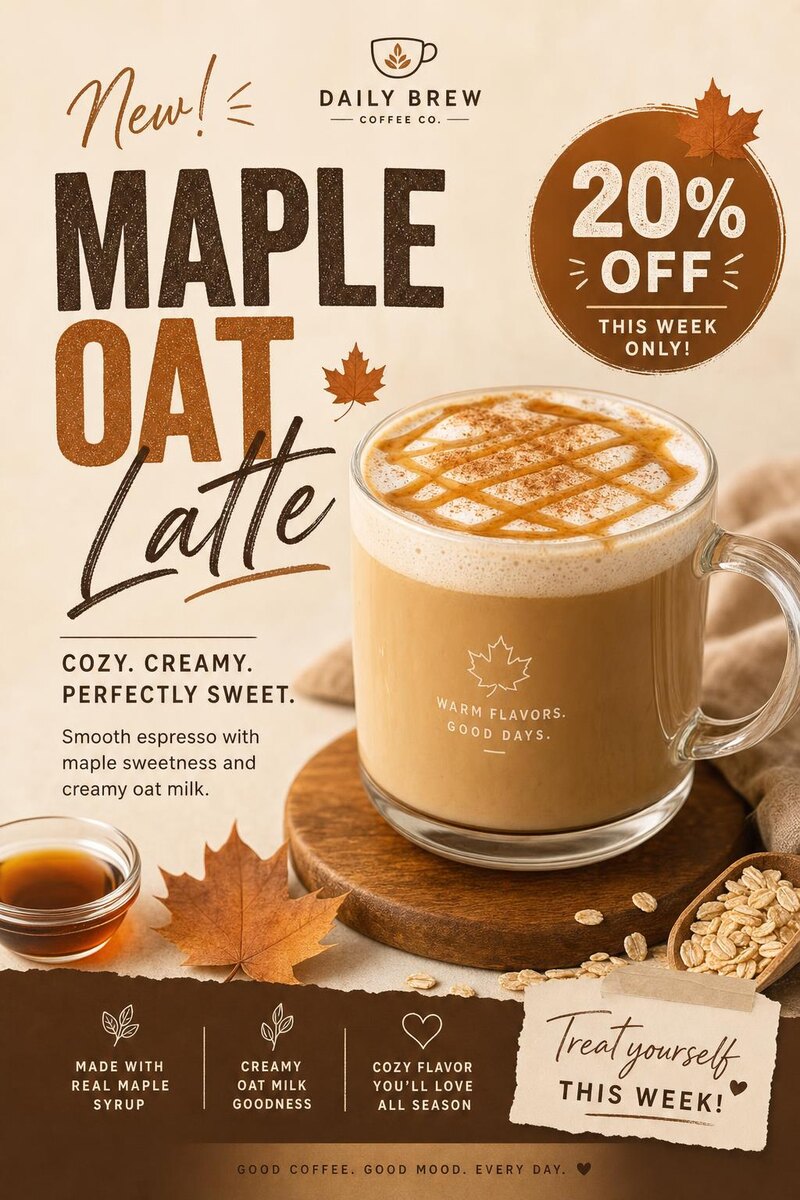
“a post for a coffee shop launching a new 'Maple Oat Latte', 20% off this week”
Make one like this ↑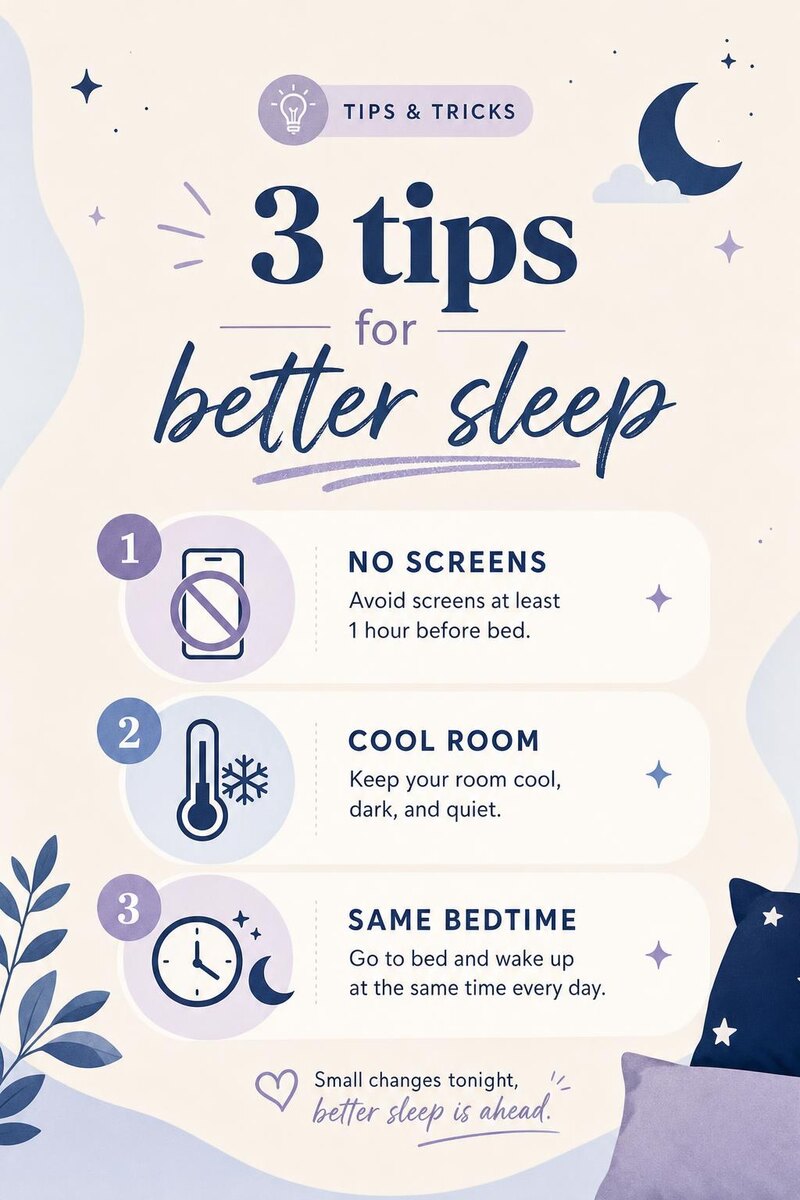
“a post with '3 tips for better sleep': no screens, cool room, same bedtime”
Make one like this ↑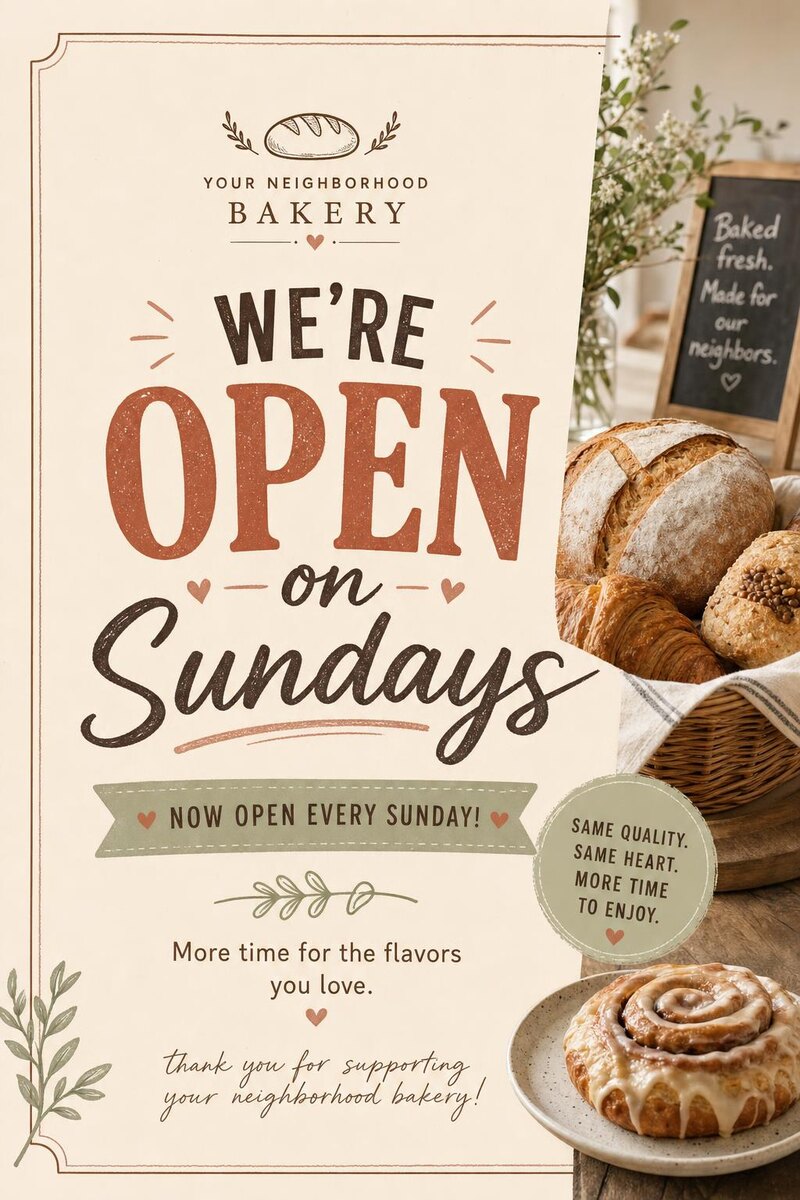
“a post announcing 'We're open on Sundays' for a neighborhood bakery”
Make one like this ↑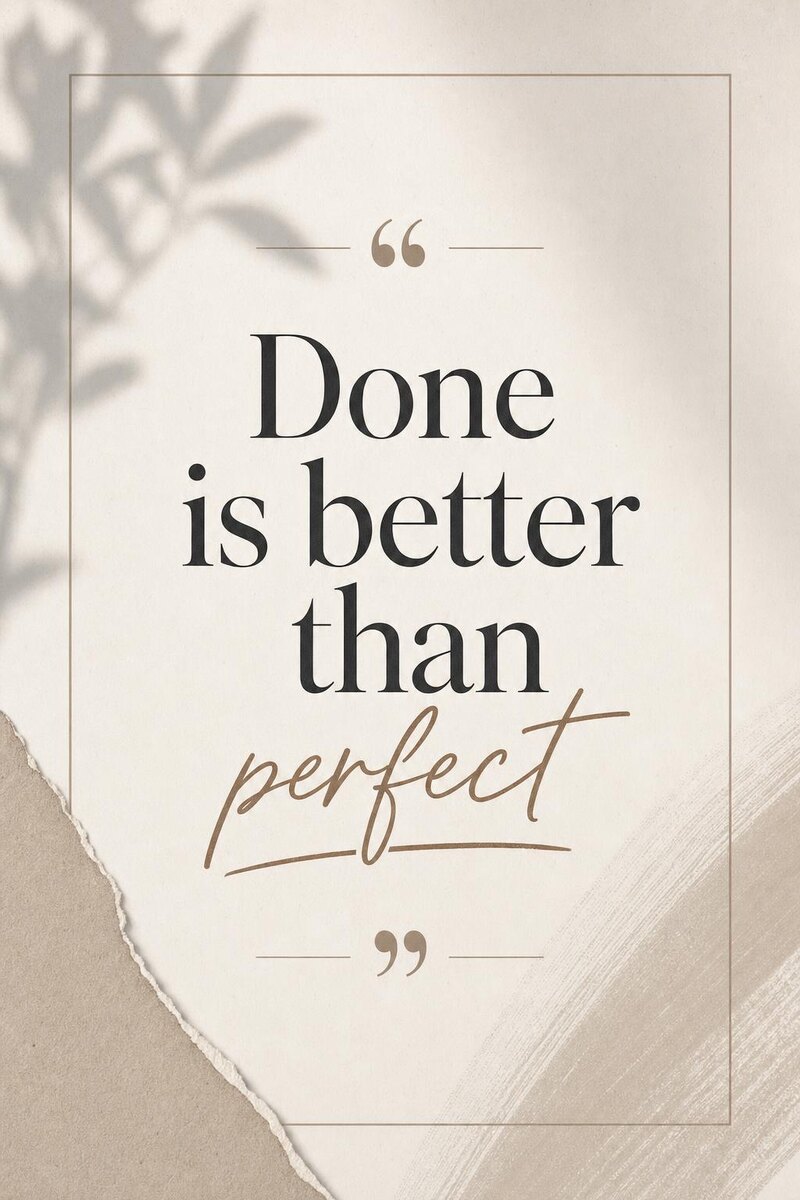
“a post with the quote 'Done is better than perfect'”
Make one like this ↑What it does
Eleven post styles
Choose Motivational, Holidays, Announcements, Seasonal, Quotes, Illustration, Product Promo, Funny, Tips & Tricks, Stats & Facts or Celebrations. The style is added to your prompt, so one bakery can get a Product Promo post for a new pastry and an Announcements post for new opening hours.
Portrait, square or story
Posts come in 2:3, 1:1 and 9:16. GPT Image 2, where the tool starts, draws 2:3 and 1:1. Nano Banana Pro, Nano Banana 2, Flux 2 Pro and Grok Imagine draw all three, and most other models in the picker draw 1:1 and 9:16, which also suits a Story.
Brand colors, photos and text fixes
Add a palette like Earth Tones or Vibrant to keep posts on brand, and attach a product photo or logo on models that accept images. If a word or price comes out wrong, open the post and use Change Text from the Text menu.
How it works
- 1
Write what the post says
Lead with the message in quotes, then the business and the offer: a post for a coffee shop launching a new 'Maple Oat Latte', 20% off this week. Keep the words on the image short and put the details in your caption.
- 2
Pick a style, shape and count
Choose a style such as Product Promo or Tips & Tricks, keep 2:3 or switch to 1:1 or 9:16, add a palette with your brand colors, and make up to four versions on GPT Image 2.
- 3
Check and post
Read every word, price and date on the image. Fix slips with Change Text, use Reframe to make a square or Story version of the same post, then download it and upload it with your caption.
Who it's for
For small businesses
Cafes, salons, gyms and shops that post offers, new arrivals and opening hours every week without a designer, and want each post to look like part of the same feed.
For creators and coaches
Turn your advice into Tips & Tricks or Stats & Facts posts, or a line from your podcast into a Quotes post, and post more often without opening a design app.
For social media managers
Draft several directions for a client's launch or holiday post in one run, then reuse a result's settings so the next post keeps the same style and palette.
More to try


Frequently asked questions
Which size is best for Instagram?
Instagram trims very tall images to its own portrait limit when you upload, so a 2:3 post may lose a little at the top and bottom. Keep text away from the edges, pick 1:1 for a safe square, or use 9:16 for a Story.
Will the text on the post be spelled correctly?
Usually, for short lines on models that are good at lettering, such as GPT Image 2 and Nano Banana Pro. Prices, percentages and long lists are where slips happen, so read everything and fix it with Change Text or by generating again.
Can I use my product photo or logo?
Yes. Attach the photo or logo and describe the post around it. GPT Image 2 and most other models accept a reference image. Recraft V4, Recraft V4 Pro, Stable Diffusion 3.5 and MiniMax Image-01 work from text only, so the attach button hides when one of them is selected. The product is redrawn, so check that it still looks like yours.
Can it write the caption or post for me?
No. The tool makes the post image. Write the caption, hashtags and alt text yourself, then post it in the app or upload it to the scheduling tool you already use.
Do I need an account?
You can open the tool and write your brief without one. Generating asks you to sign in and uses credits, and the price for the model and number of posts shows on the Generate button. The Explore tab shows example posts with their prompts.
Make your own
The generator is at the top of this page. The price shows on the Generate button before you start.
Back to the tool