
AI Sticker Generator
 Logo
 Poster
 Instagram Post
 Instagram Story
 T-Shirt
 Branding
 Card & Invite
 Flyer
 Infographic
 Design Mockup
 Sticker
 Icon
 Wallpaper
 Pattern
 Book Cover
 Album Cover
 Meme
 Emoji
 Tattoo
 Signature
 Slide
 YouTube Thumbnail
No sticker templates available
Design tool · Stickers
Describe a character, an object or a short phrase, choose a sticker style, and download a die-cut sticker as a PNG with a transparent background.
This tool turns a short description into a die-cut sticker. You write what the sticker shows, the tool adds a die-cut sticker brief to your prompt, and the model draws one square design with a white border around its outline. The tool starts on GPT Image 1.5 and asks it for a transparent background, so the PNG you download has no white box or checkerboard behind the sticker. Pick one of ten styles, add a color palette, and make up to four stickers in one run. The tool makes still images. Download the PNG and add it to your messaging app, a label sheet or a sticker printing order yourself.
Examples
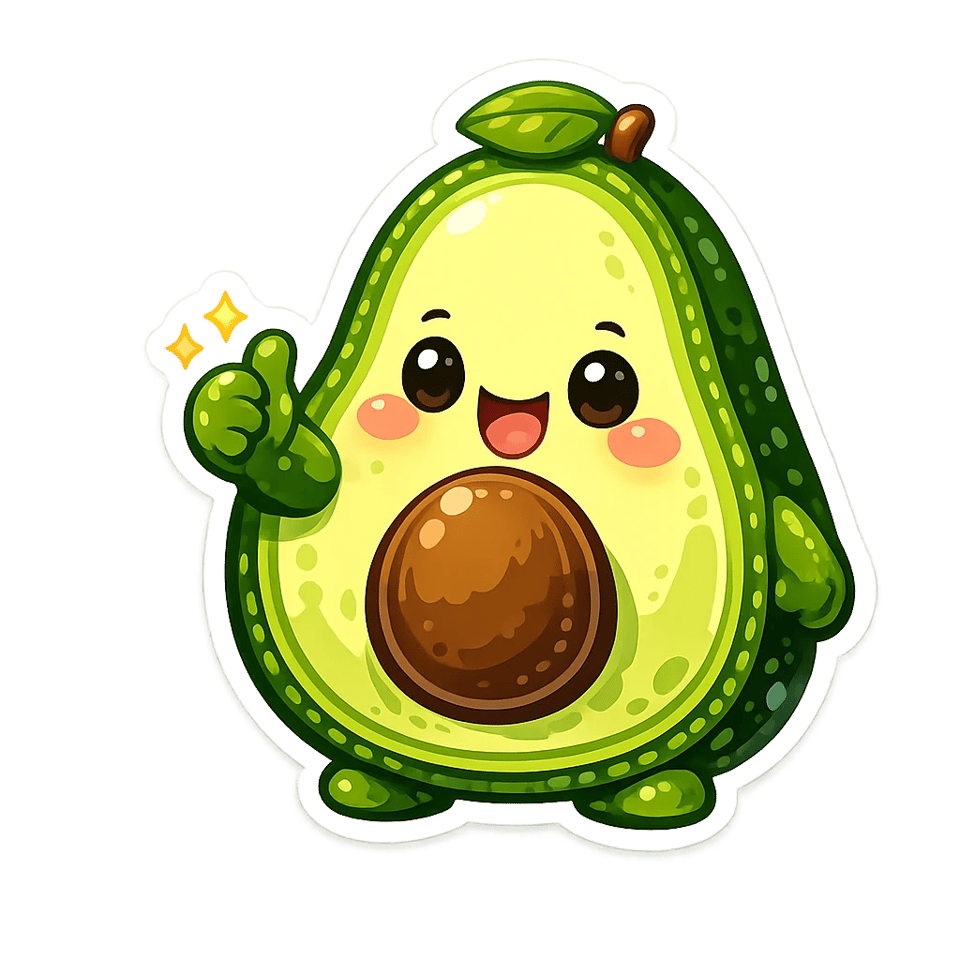
“a happy avocado giving a thumbs up”
Make one like this ↑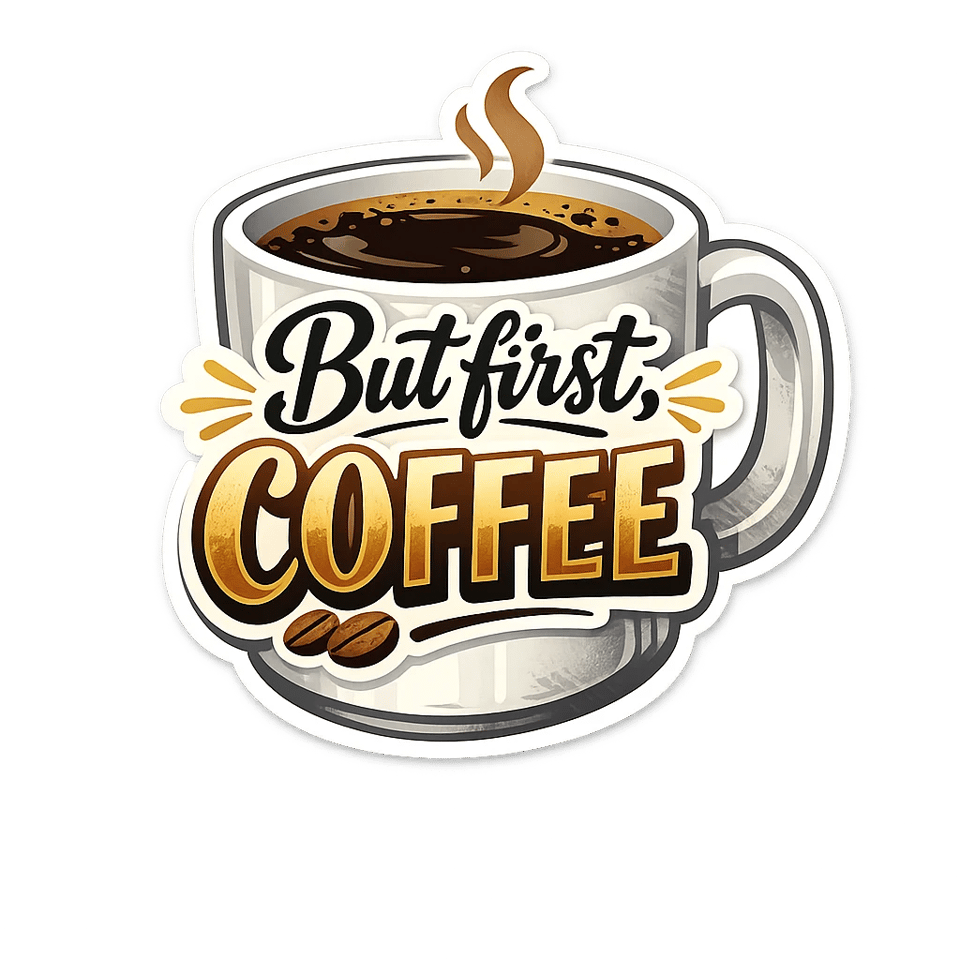
“a coffee cup with the words 'But first, coffee'”
Make one like this ↑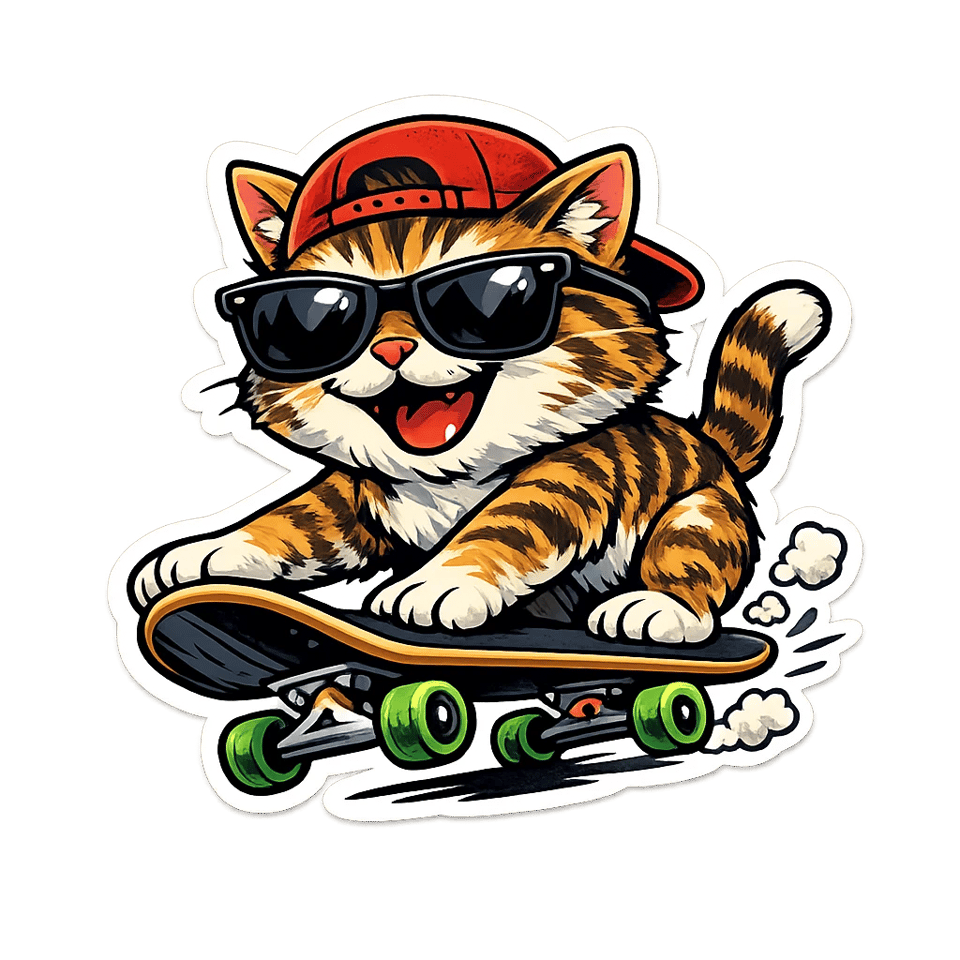
“a cat in sunglasses riding a skateboard”
Make one like this ↑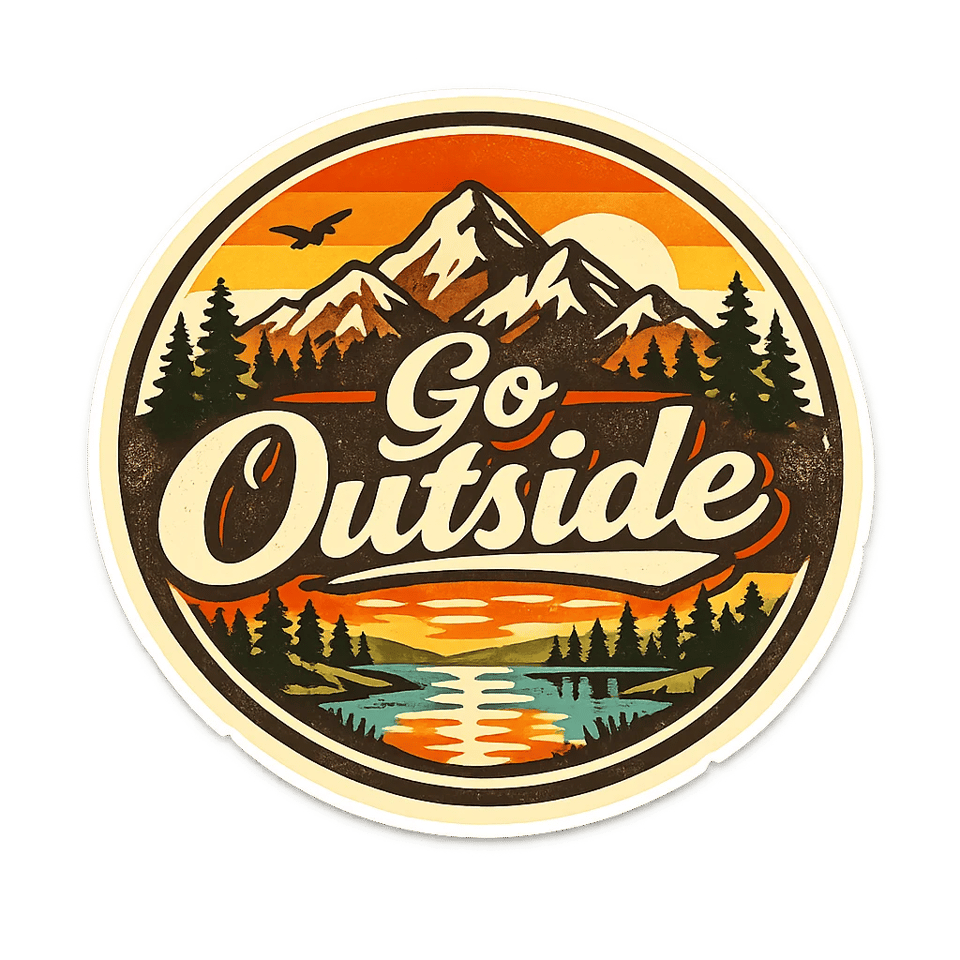
“a round mountain badge with the words 'Go Outside'”
Make one like this ↑What it does
Ten sticker styles
Choose Funny, Cute, Motivational, Emoji, Animals, Aesthetic, Quotes, Minimalist, Retro or Meme. The style is added to your prompt, so one idea, like a cat on a skateboard, can come back as a soft Cute sticker or a bold Retro badge.
Transparent PNG with GPT Image 1.5
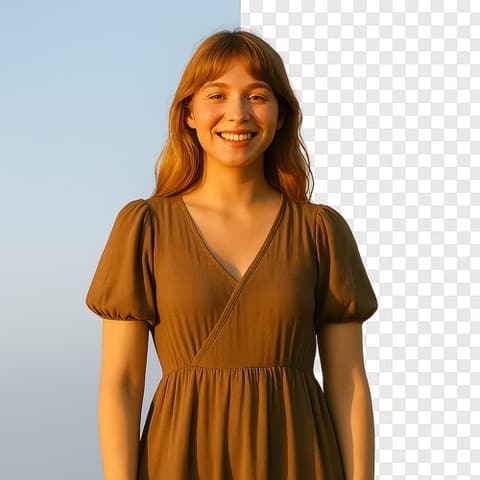
With GPT Image 1.5 selected, the tool requests a transparent background and you get a PNG where only the sticker and its white border are visible. Other models in the picker can be chosen, but they return the sticker on a background. For those, open the result and run Remove BG before you download.
Words on stickers
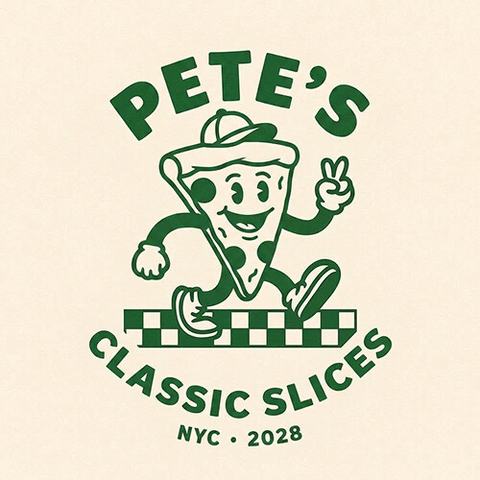
Put a short phrase in quotes, like 'But first, coffee', and pick Quotes, Motivational or Meme. GPT Image 1.5 handles short lettering well, but read every word before you print, since AI text can still drop or swap a letter.
How it works
- 1
Describe the sticker
Name one subject and what it is doing: a happy avocado giving a thumbs up. One clear character or object reads better at sticker size than a busy scene, and a phrase works best at two to five words.
- 2
Pick a style and count
Choose a style such as Cute or Retro, keep GPT Image 1.5 for a transparent background, add a palette like Pastel or Neon Lights if you want set colors, and choose how many stickers to make, up to four in one run.
- 3
Download the PNG
Open your favorite from your history and check the edges and any lettering. Upscale it if you plan to print it large, download the PNG, then add it in your messaging app or upload it to your printing service.
Who it's for
For chats and group threads
Make a sticker of an inside joke, your team mascot or a reaction you keep typing out, then add the PNG to the sticker feature of the app your group uses.
For small shops and makers
Design labels for jars, candles and packages, or a set of stickers to tuck into orders, and send the transparent PNGs to a sticker printer or print them on label paper.
For laptops, planners and journals
Turn a favorite quote, a hobby or your pet's breed into a sticker for a laptop lid, a water bottle or a planner page, and reuse a result's settings to make a matching set.
More to try




Frequently asked questions
Is the background really transparent?
Yes, when GPT Image 1.5 is selected, which is where the tool starts. The PNG has a transparent background around the white die-cut border. Other models return the sticker on a background, so run Remove BG on those results before you download.
Can I print the stickers?
Yes. Download the PNG and upload it to a sticker printing service or print it on sticker paper at home. The file is 1024 by 1024 pixels, which suits small stickers; for anything larger than a few inches, use Upscale first and check your printer's file requirements.
Can I use them in WhatsApp or iMessage?
You download the PNG, then add it in the app yourself. WhatsApp, iMessage, Telegram and other apps each have their own steps and size rules for custom stickers, so check the app's help pages. The stickers are still images, not animated ones.
Can I make a sticker of my pet or from a photo?
Yes. Attach a clear photo of your pet, yourself or a friend and describe the sticker you want, such as this dog as a cute cartoon sticker. GPT Image 1.5 draws it from the photo and still returns a transparent PNG. The result is a drawing based on the photo, so check that it looks like them before you print.
What size is the file?
Stickers are square, 1:1. With GPT Image 1.5 you get a 1024 by 1024 pixel PNG. Upscale it from your history when you need more pixels for print.
Do I need an account?
You can open the tool and write your idea without one. Generating asks you to sign in and uses credits, and the price for the model and number of stickers shows on the Generate button. The Explore tab shows example stickers with their prompts.
Make your own
The generator is at the top of this page. The price shows on the Generate button before you start.
Back to the tool